
You can save a map before adding anything to your selections panel (as a blank map that can be added to) or after selections have been made. Click here to learn how to make a selection.
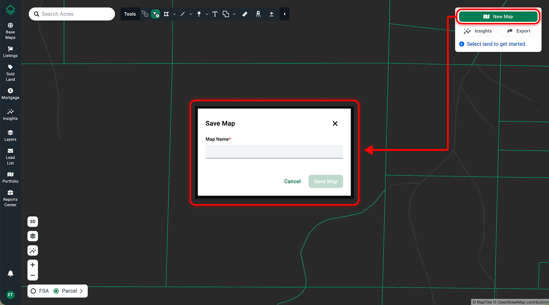
With nothing selected, click New Map at the top right.
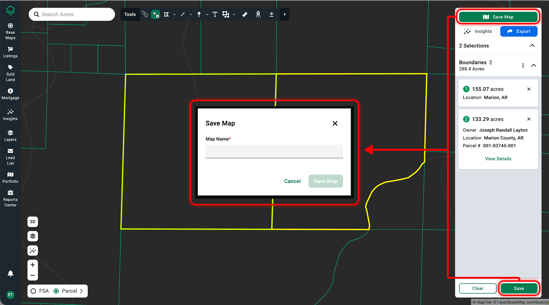
With land selected, click Save Map at the top right — or click Save at the bottom right.
Once a map is saved, all changes made to that map will be saved automatically.
Saved maps can include boundaries, drawings, sold land, mortgages, and listings.
Free users can save 2 maps and Acres+ users can save 5 maps. For unlimited maps, upgrade to Acres Pro or Enterprise. Click here to compare our plans and upgrade your plan.
To access your saved map, click Portfolio at the bottom of your left-hand navigation menu. Learn more about accessing your portfolio here.