
Desktop
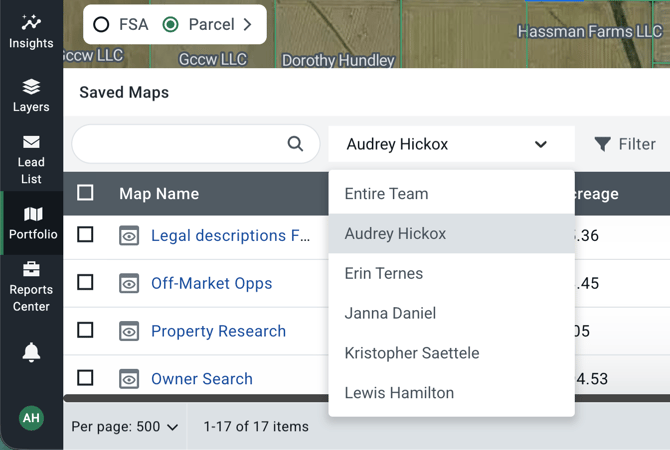
- Click the drop down menu near the top left of the Portfolio Panel
- To view the Entire Team’s maps, click the “Entire Team” option from the top of the list.
- To view a specific team member’s maps, find their name and click to select and view.
Mobile
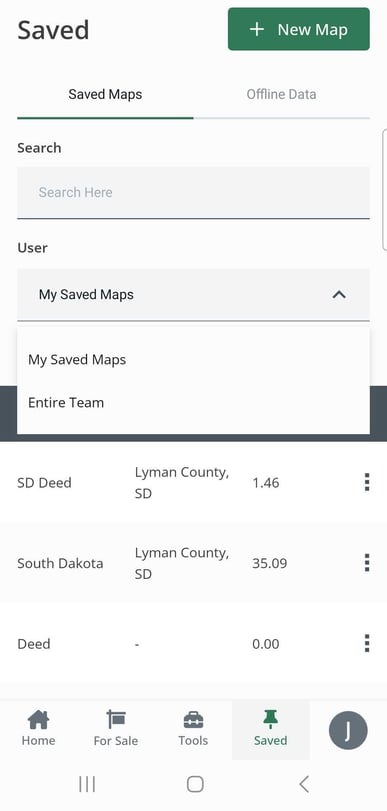
- From the Saved Maps panel, navigate to the dropdown menu User.
- You can tap to view either the Entire Team’s maps by choosing the “Entire Team” option or can view your own saved maps by choosing the “My Saved Maps” option.
For the ability to collaborate with your team and view, manage and edit team maps; upgrade to Acres Enterprise. Click here to compare our plans and upgrade your plan.
Related Articles:
Learn how to toggle team editing
Learn how to view your portfolio of saved maps