
If you are on a team with multiple users, you will have access to your teammates' saved maps in your own portfolio, and they will have access to your saved maps. The default is allowing anyone to edit these maps, but you can edit your maps so that only you can edit them.
If you are able to edit another user’s maps, you can open the map, add/remove selections, edit or delete the map, change the status in any portfolio columns, and more.
If you are unable to edit another user’s map, you can still view the map (in preview mode only), duplicate the map, export reports or downloads, and leave comments.
Desktop
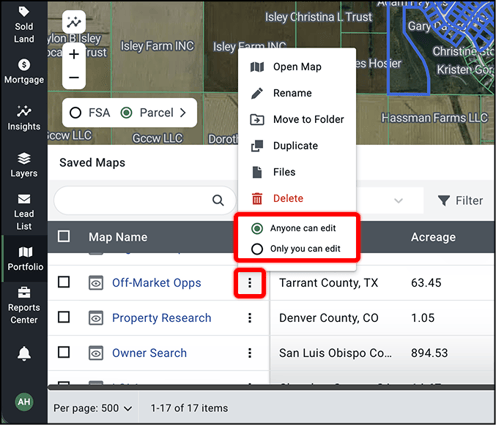
- Click the overflow menu (three vertical dots) at the right side of the map name.
- Choose “Anyone can edit” to allow your team members to collaborate on and edit a map.
- Choose “Only you can edit” to prevent team members from editing a map. They will have a view-only version of the map.
Mobile
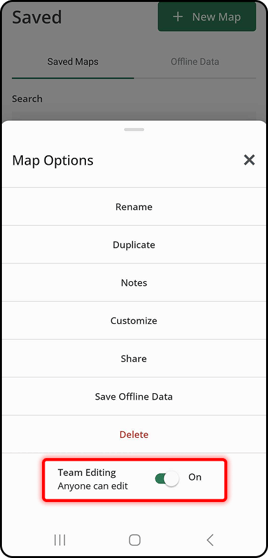
- Click the overflow menu (three vertical dots) at the right side of the map name.
- Click the Team Editing toggle to enable/disable the ability for team members to edit a saved map.
For the ability to collaborate with your team and view, manage and edit team maps; upgrade to Acres Enterprise. Click here to compare our plans and upgrade your plan.
Related Articles:
Learn how to view team maps in portfolio
Learn how to view your portfolio of saved maps
Learn how to create custom columns in portfolio
Learn how to edit columns in portfolio