
All edits to your Portfolio will be saved to your personal account.
To edit your column titles, selection options, and colors in Portfolio:
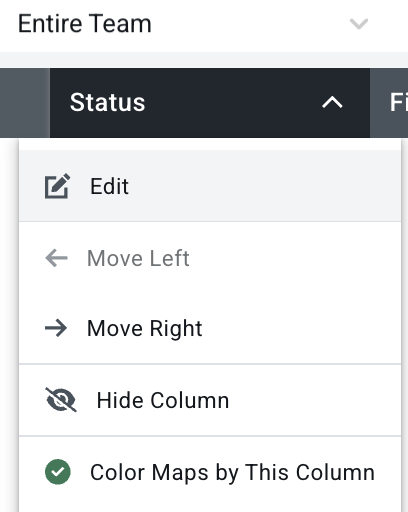
- Hover over the column header you’d like to update.
- Click the downward pointing arrow that appears.
- Select the Edit option in the menu.
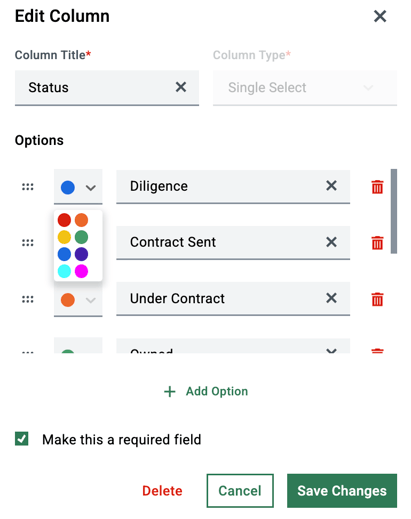
- A panel will open where you can edit the column title, edit existing options, or add new options.
- You can also choose to “Make this a required field” so all new maps that are created in your team will be prompted to fill out this field.
To move column headers
-
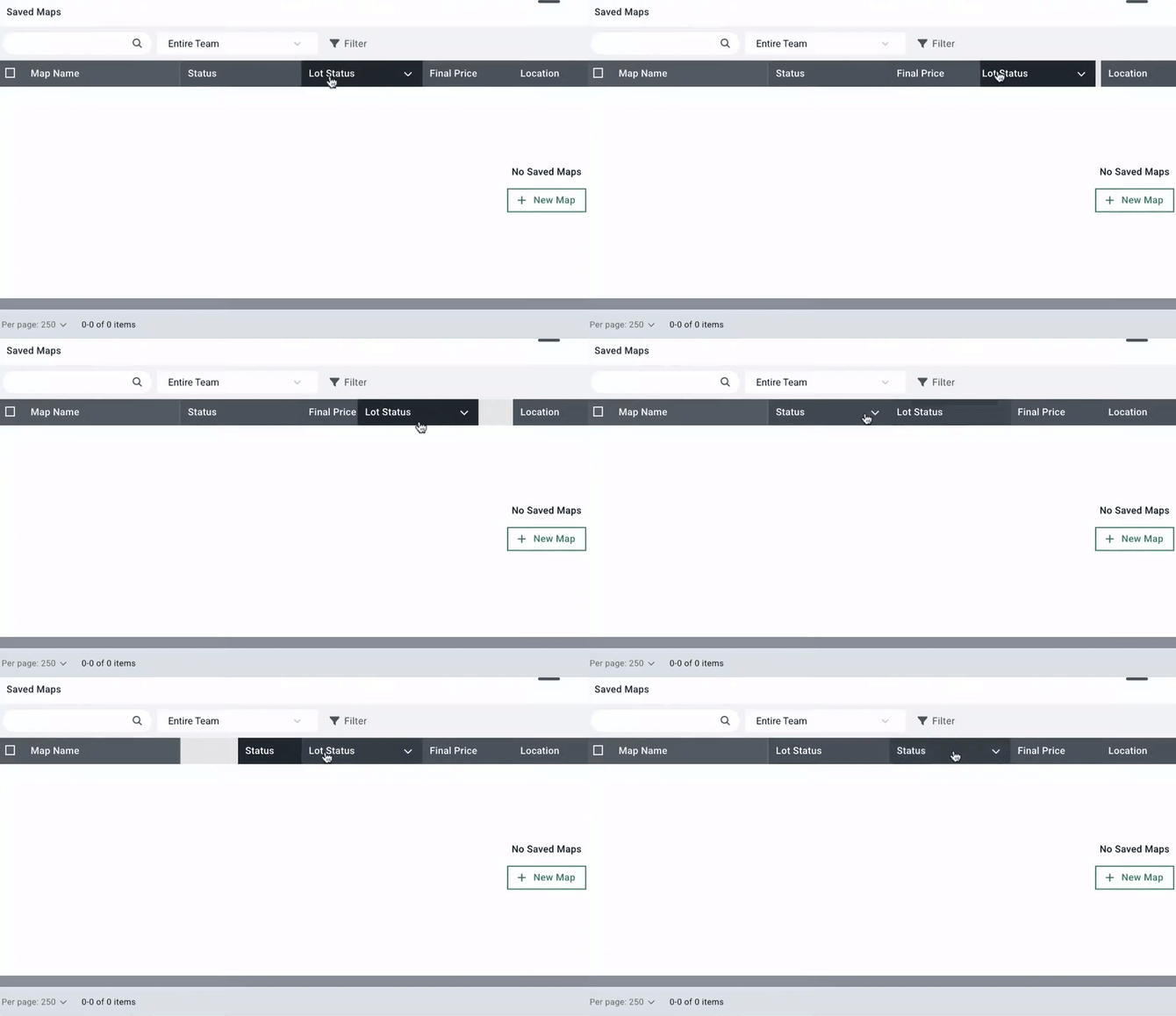
Click and drag the header you’d like to move.
-
Release when you’ve moved it to the desired position.
-
Editing the placement and width of columns will be saved to your portfolio.
To adjust the column width
-
Column width can now be adjusted by grabbing the far right edge and dragging to your desired width.
-
Note: The far right column is not resizeable. If need be, you can reorder that column over to the left, resize it, and then move it back.
For the ability to create or edit custom portfolio columns, upgrade to Acres Enterprise. Click here to compare our plans and upgrade your plan.
Related Articles:
Learn how to create custom columns in portfolio
Learn how to view your portfolio of saved maps
Learn how to search and filter your portfolio
Learn how to view team maps in portfolio