
From inside of the Portfolio, click the small “+” button at the top right side of the panel.
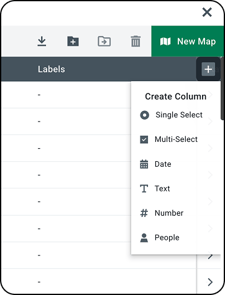
You have a number of custom data column options:
Single Select
- Create a “flow” to move your properties through, one stage at a time with custom options. (Ex. “Prospecting”, “Under Contract”, “Actively Listed”, “Closed”, “Lost”, “Owned”, “Annual Inspection/Treatment”, etc.)
- Create a custom title and assign a color to each option.
- Color Maps by This Column: All the points on your map will change colors to reflect the current option, allowing you to quickly visualize pipeline stages on the map.
Multi Select
- Create options for multiple criteria! Crop types, labels or tags, multiple departments, and more. Apply multiple options to each map.
- Use filters to search for all maps containing multiple overlapping criteria, such as “Almonds + 2024 + Fresno County”.
- Color Maps by This Column: All the points on your map will change to the color of the first option applied to your saved map.
Date
- Add custom dates to track listing, closing dates, site visits, and more.
Text
- Create custom text fields to track information like phone numbers, client names, emails, notes, or links.
Numbers
- Use numbers, dollars, or percentages to track listing vs closed costs, commission rates, tax, and more.
People
- This column provides a way to add a member or multiple members of your team to this custom field. The best option for assigning teammates to certain maps, designate the primary contact, and more.
Adjusting Custom Columns
Editing the placement and width of columns will be saved to your portfolio.
To move column headers
Click and drag the header you’d like to move.
Release when you’ve moved it to the desired position.
To adjust the column width
Column width can now be adjusted by grabbing the far right edge and dragging to your desired width.
Note: The far right column is not resizeable. If need be, you can reorder that column over to the left, resize it, and then move it back.
For the ability to create or edit custom portfolio columns, upgrade to Acres Enterprise. Click here to compare our plans and upgrade your plan.
Related Articles:
Learn how to edit columns in portfolio
Learn how to search and filter your portfolio
Learn how to view your portfolio of saved maps
Learn how to view team maps in portfolio