
Search for Saved Maps in the Smart Search Bar
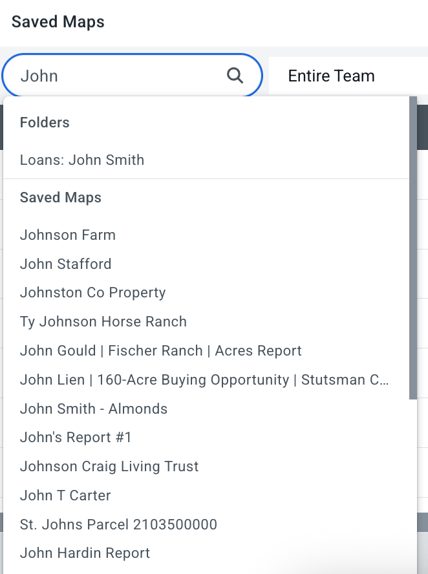
- Type keywords associated with your map (name, county, state, etc) into the search bar on the top left of the Portfolio dashboard.
- The search bar will give you a list of suggested saved maps.
- Related article: Use our Smart Search Bar
Filtering your saved maps in Portfolio
- Select the filter icon at the top of the Portfolio dashboard.
- A panel will appear from the right that allows you to filter by acreage, state, custom columns, and more.
- Hit Apply once you’ve set your filter criteria.
- Both the list and the map will update to display saved maps meeting the desired criteria.
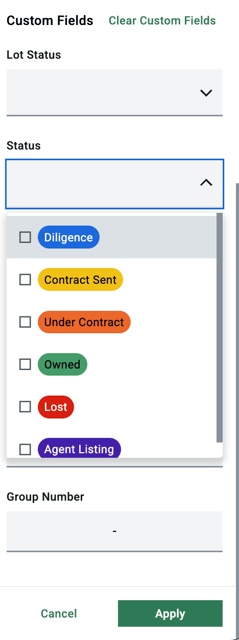
Note: For the ability to filter by custom columns and their values, upgrade to Acres Enterprise. Click here to compare our plans and upgrade your plan.
Related Articles:
Learn how to view your portfolio of saved maps
Learn how to view team maps in portfolio