
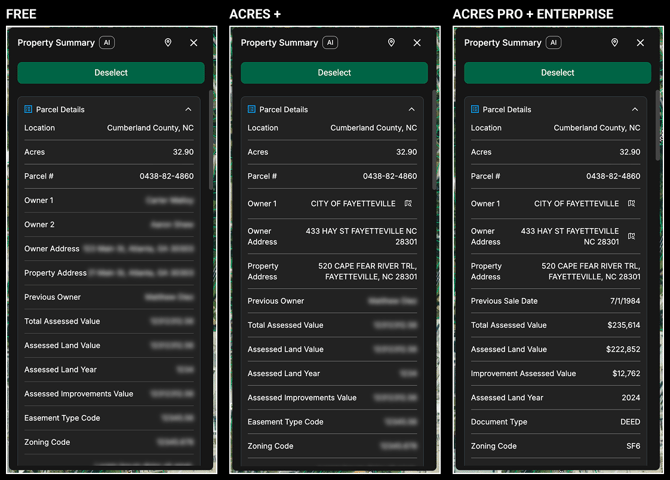
Note: Viewing certain information requires a subscription. Click here to compare our plans and upgrade your plan.
How to View the Property Summary
There are three ways you can pull up data associated with a particular parcel:
- From the map, click on a parcel using the black Info Cursor.
- From the map, right click on the property and click View Details.
- From the selections panel, click on View Details.
Click here to learn more about making selections.
Depending on your subscription level, the Property Summary includes:
- Parcel Details
- Boundary Measurements (In Feet)
- Suggested Layers
- Asset Intelligence
- Property Taxes
- Sold Land
- Mortgages
- Recent Imagery
- Historical Imagery
- Land Data Insights (such as)
- Elevation
- Flood
- Soils
- Land Cover
- County Relevant Data Layers
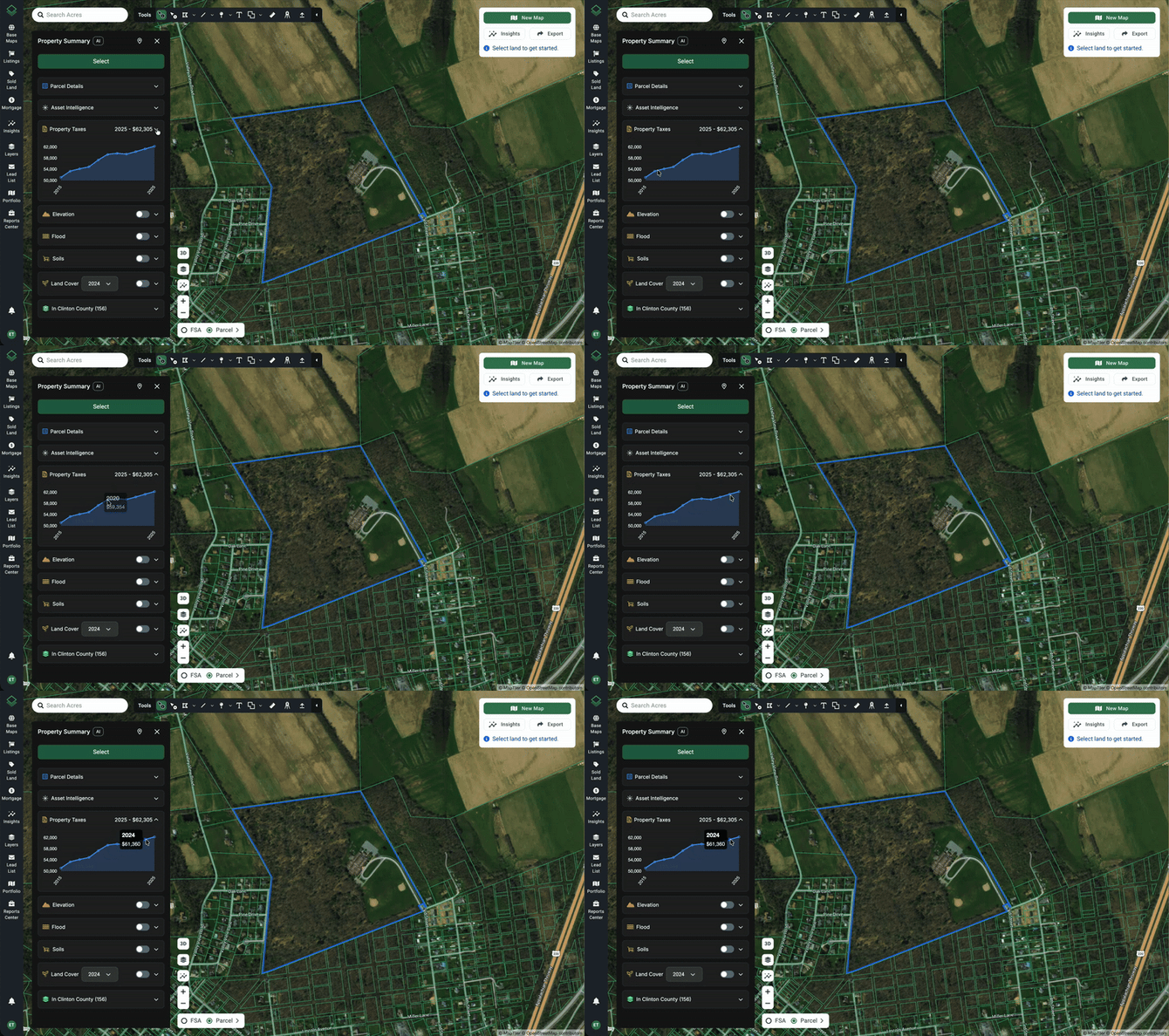
TIP: Collapse and expand each category by clicking the arrow on the right of each summary panel. See the image above for an example of expanded and collapsed categories.
From the Property Summary panel you can:
-
-
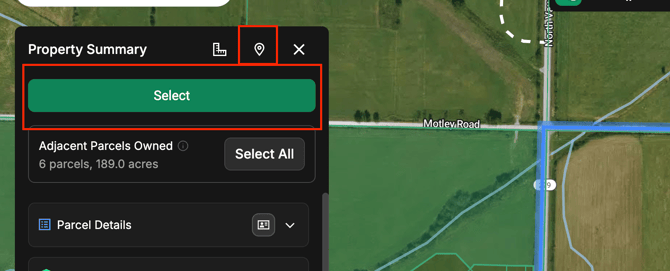
- Select and Deselect parcels by clicking the Select button.
- Click the Location Pin icon to zoom into that particular property.
- Click on the Carpenter’s Square icon to open measurements for the boundaries of the property you are looking on the map. The measurements will appear in feet.
-
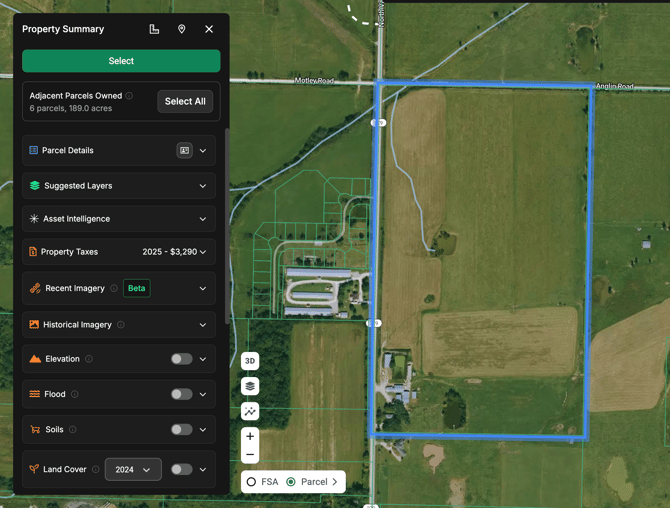
TIP: Collapse and expand each category by clicking the arrow on the right of each summary panel. See the image above for an example of expanded and collapsed categories.
From the Property Summary panel you can Select and Deselect parcels and click the Location Pin icon to zoom into that particular property.
Parcel Details
This section is where you will find legal parcel information that is pulled directly from the county assessor’s office.
The most important information, such as parcel number, recorded acres, and owner name, will be shown by default.
Click View More to see additional information like Assessed Value or Previous Owner, where available.
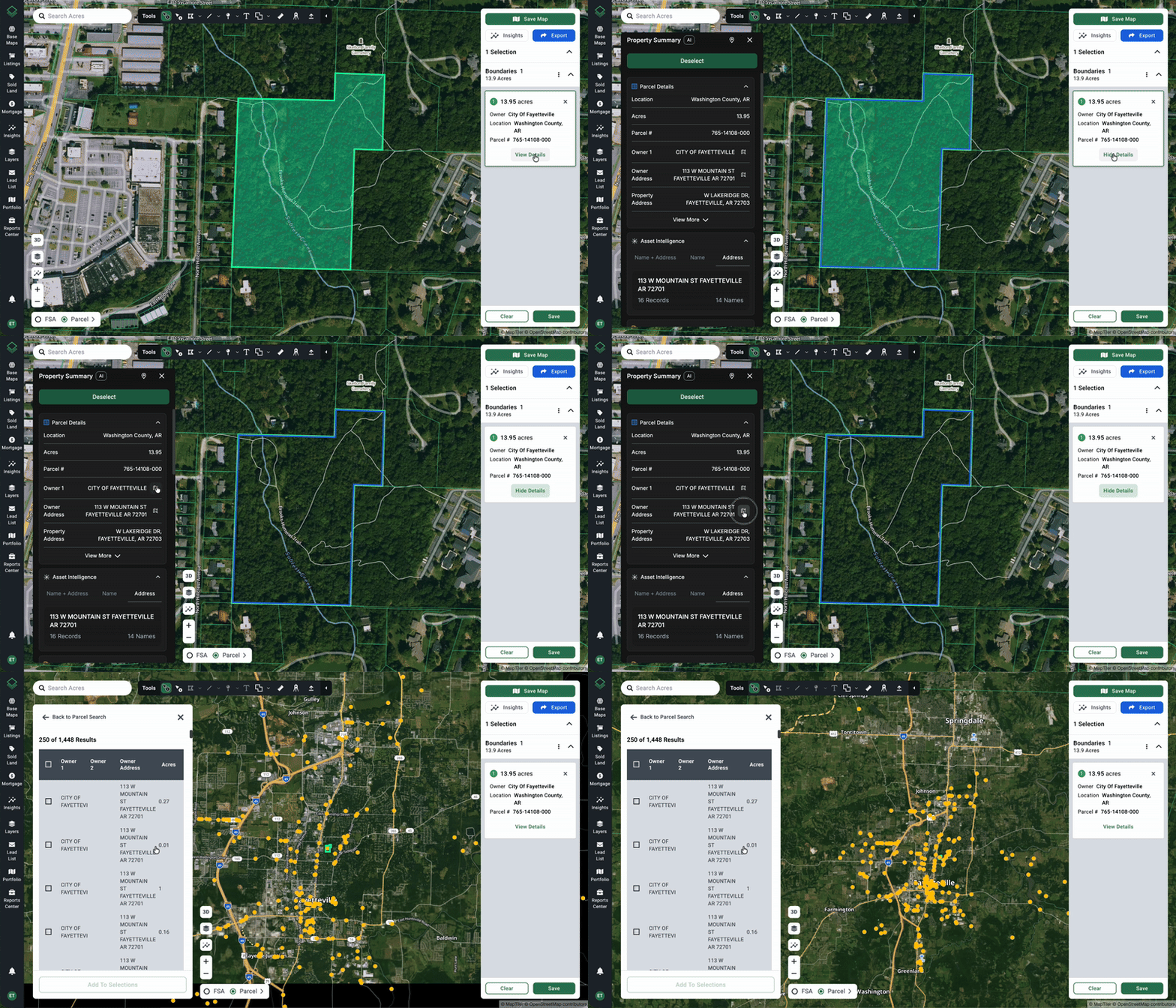
Reverse Parcel Search
To do a reverse parcel search from the map, click the icon next to the Owner Name or Owner Address. This will bring you to Parcel Search results that display all parcels that are associated with that owner name or owner address.
Suggested Layers
This is a list of five data layers most relevant to the property you're viewing. They are ranked by how much data is present in the area around the boundary with a View More option for the full list. Add a layer to your map with the + icon to visualize the data and toggle it off with the ✓.
Asset Intelligence
Asset Intelligence offers a way to find information associated with land owners, either using the Owner Name, Owner Address, or both.
Clicking the green starburst icon pulls up the Assets Graph to the right of the Property Summary panel, so you don’t lose your spot as you explore.
Property Taxes
When collapsed, this panel shows the property tax amount from the most recent year.
Expand this section to see a graph of historical property tax records.
Hover over the graph to show the value of individual tax years.
 Sold Land
If the property has any sales associated with it, those will be listed under this section. It will appear as a price and a date with a drop down arrow. Expand this section to view all of the transaction data.
Mortgage
If there is a mortgage associated with the property, it will be listed here. It will show as a price and a maturity date with an arrow drop down option.
Expand this section to see the progress on the mortgage, term length, lender, borrower, mortgage type, courthouse and GIS acres.
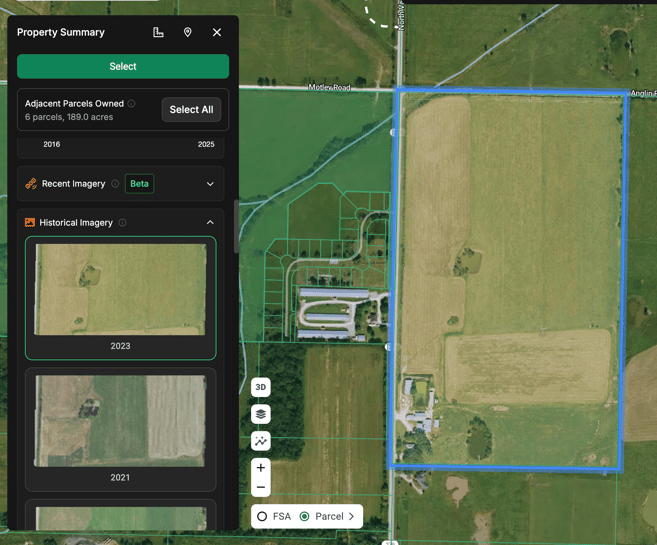
Recent Imagery
Recent Imagery is a great way to get a snapshot of any recent activity or changes on a property without having to go out on a site visit. These are low resolution, but high quality in that they are sourced as frequently as every two weeks.
Historical Imagery
Historical Imagery is a great way to see how a property has changed over time. It’s a great way to do a deeper dive on when a large change happened on the property.
Insights
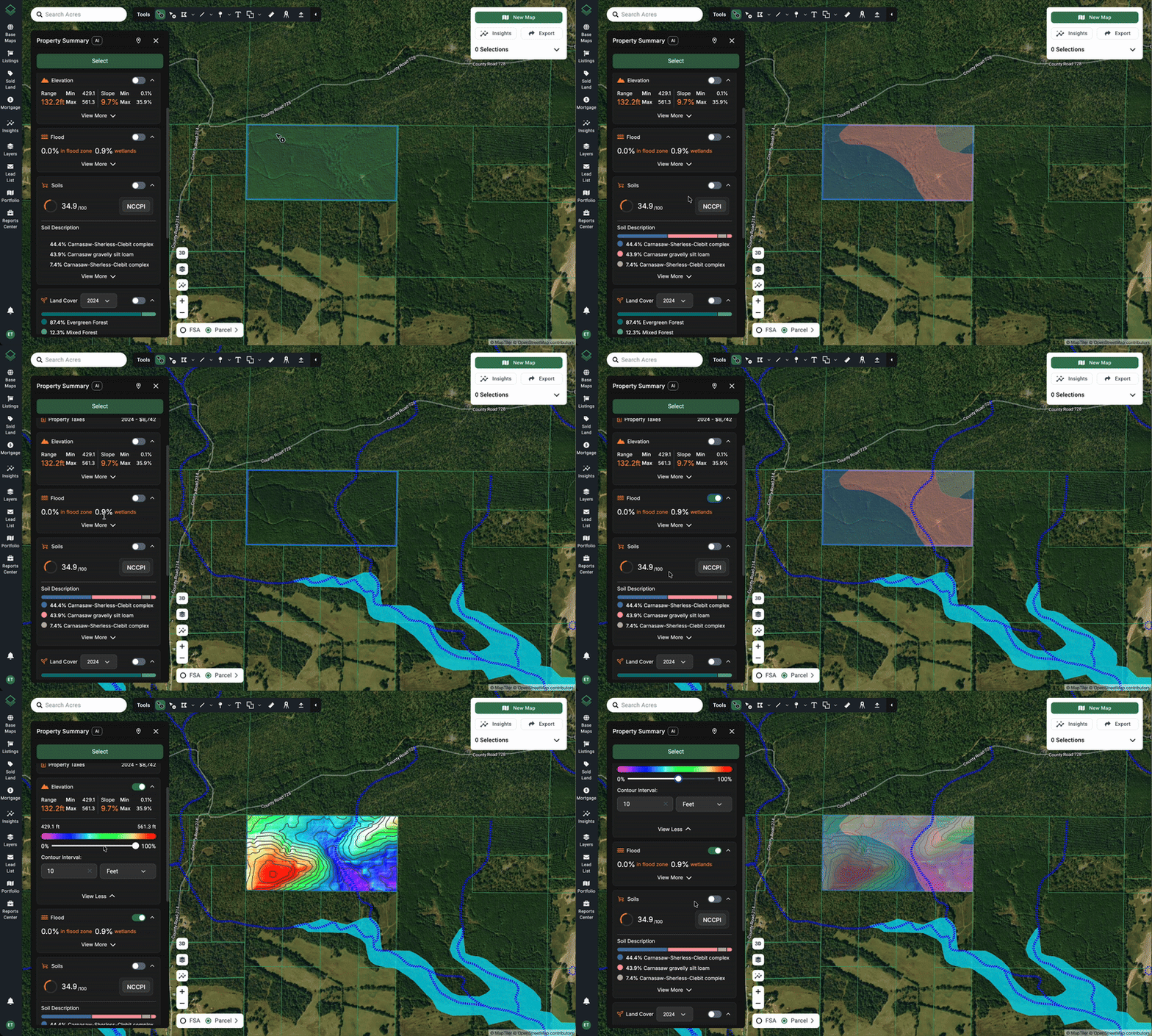
Viewing Elevation, Flood, Soils, and Land Cover insights is easier than ever.
Here are a few notes to keep in mind as you interact with Property Summary Insights:
- Hover over each Insight section to show the layer on the map.
- Switch the Toggle to ON to persist the Insight overlay on the map.
- Closing out of the Property Summary will close the Insight overlay. However, it will remember what was last toggled ON the next time you open the Property Summary.
- Insights can now be layered! Try turning on Elevation and Flood at the same time to see how this works. (See graphic below)
- On any Insight you can click View More to see more information and additional customizations.
Relevant Data Layers
Certain Layers shortcuts will be shown toward the bottom of the Property Summary panel. These are based on our available data layers and the location of this property (i.e., if elements of the layer intersect the property).
We will have layers for Development and Services, Environmental Risk, Intersecting, and Local data.
Expand each category to see what is available. You can quickly add these to your map by clicking the + icon (and toggle them off by clicking the ✓ icon).