
Quick Start
You can find every layer in the Explore Layers experience. Use it to find the layers most relevant to your work, then save them to your personal Layer Library for quick access.
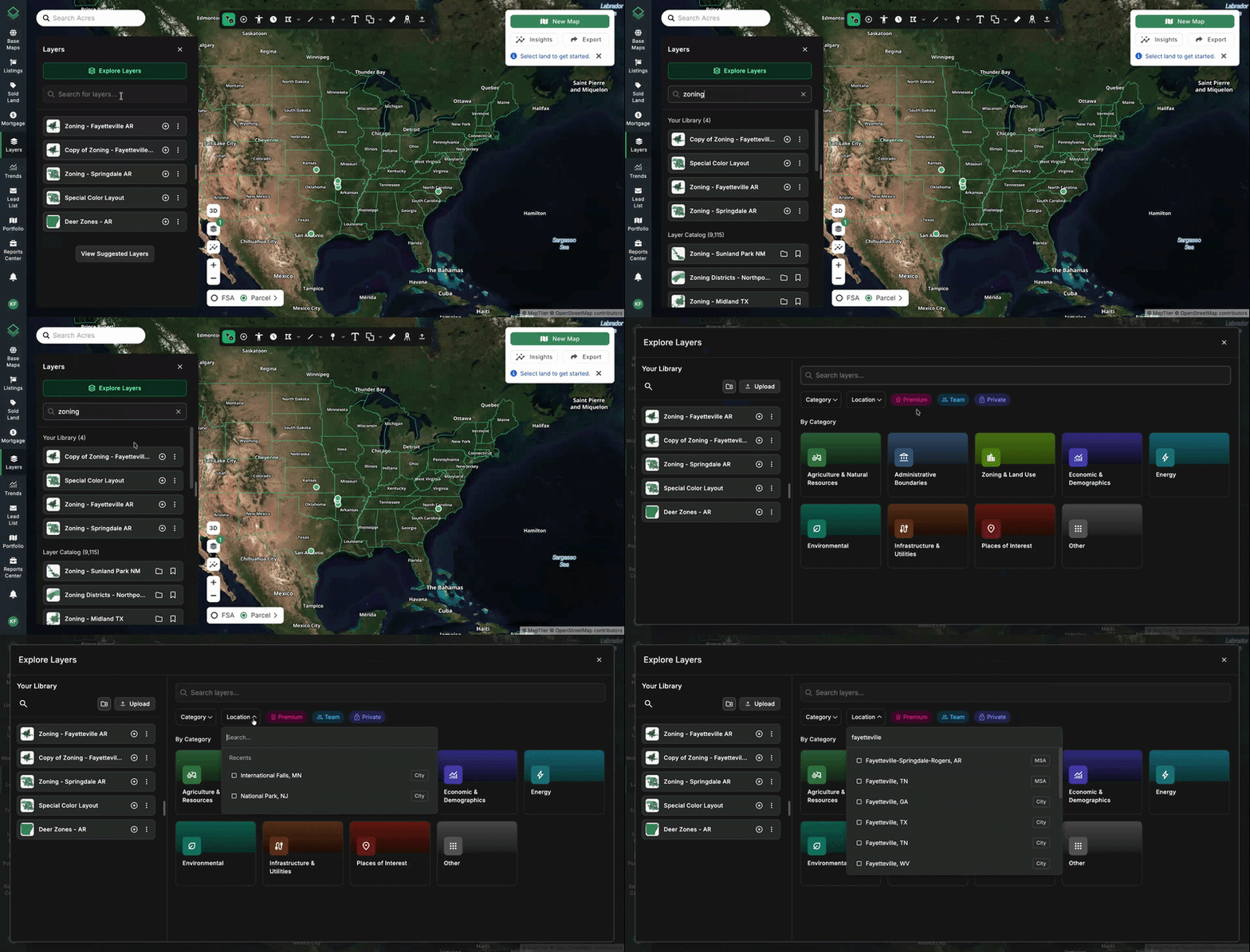
Click Explore Layers to open the Layer Catalog in a new window. From here, you can browse layers by location to see the layers available for your area of interest or narrow your results by category.
Add Layers to Your Map
Steps
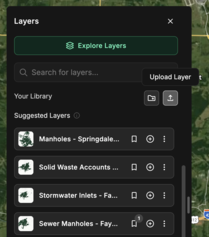
- Click Layers to open the Layers panel.
- If you have saved layers or have created folders, you will find these at the top of the panel in your Layer Library. If you do not, you will see Suggested Layers.
- Click the plus icon next to a layer to display it on your map.
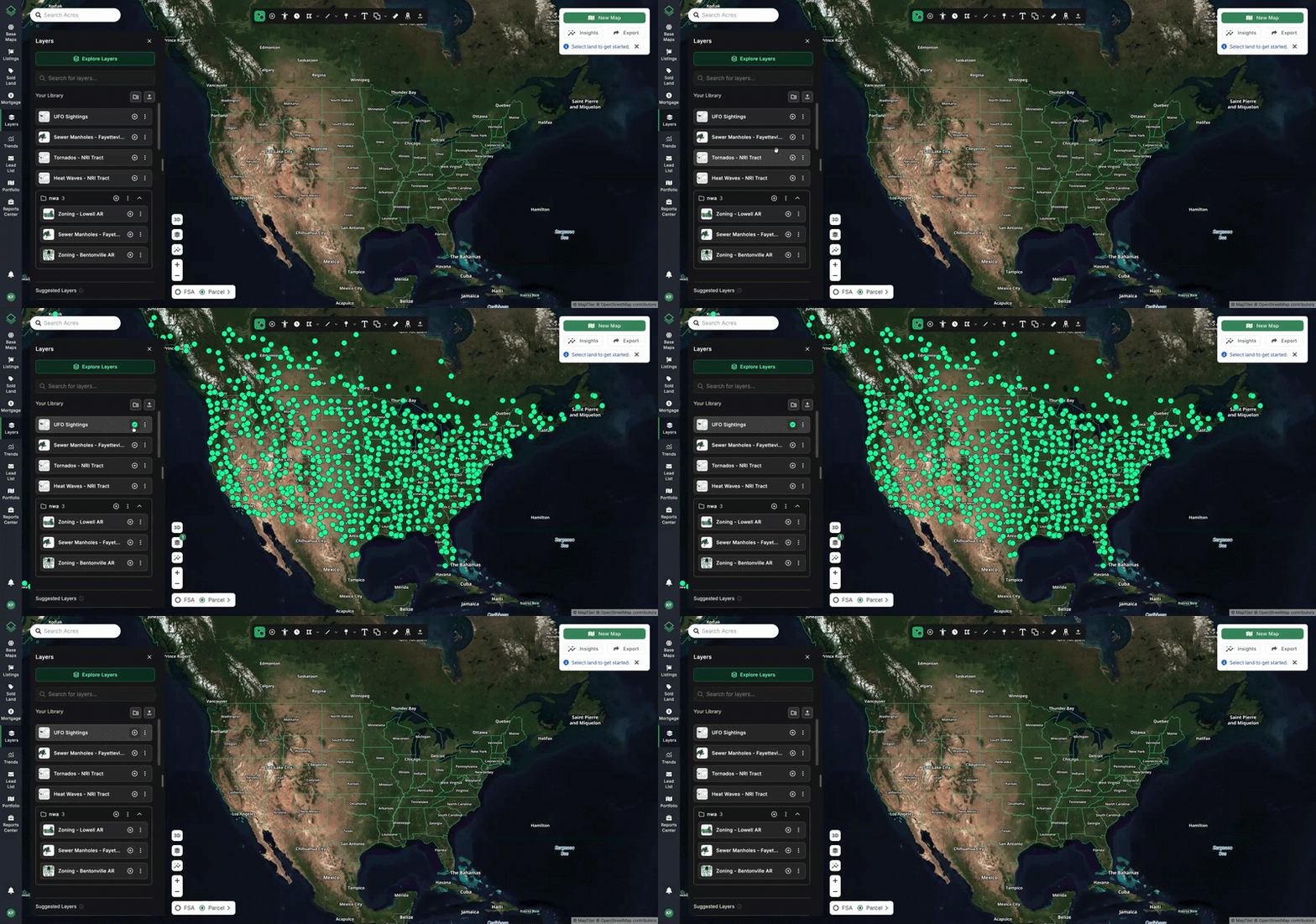
Note: If you are working within a Saved Map, Active Layers will save to your map.
Manage Active Layers with the Layers Shortcut
Each layer you’ve added to your map will show up as an Active Layer, so you can quickly show, hide, or adjust your active layers without leaving your map.
To open the shortcut, click the Layers button (in the bottom-left corner of your map).
.gif?width=670&height=314&name=ezgif.com-video-to-gif-converter%20(1).gif)
Manage All Active Layers
Click the three-dot icon (⋮) at the top of the shortcut to:
- Hide All or Show All active layers
- Remove All active layers from your map
Manage Individual Layers
For each active layer, you can:
- Hide or Remove it from your map
- Open the Legend to see what each color represents
- You can hide individual categories by clicking the Eyeball Icon
- Open Filters to narrow down the data it displays
Click the three-dot icon (⋮) next to a layer for more options:
- Zoom to Fit: Zoom the map to show the full layer.
- Open Table: View the layer’s full dataset.
- Edit Style: Open the layer’s styling options.
Tip: Your Portfolio appears in the shortcut as its own layer, so you can show or hide your saved maps alongside your data layers. It also has its own Legend. Learn more in Portfolio as a Layer.
Browse and Filter Layers
When exploring layers in the Layer Catalog, use filters to narrow the list down to the layers that matter most to you.
Filter By Category
- Click the Category dropdown menu and select a sub-type of data layers.
Filter by Location
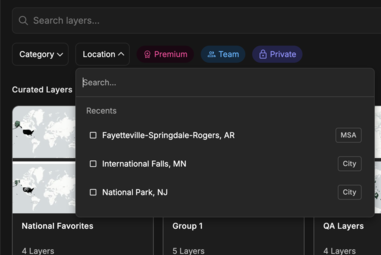
- Click the Location dropdown and type a keyword from the location name (for example, a county or city).
- Check the box next to each location you want to include.
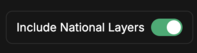
Tip: Once you’ve chosen a location, the National Layers toggle will be on by default. Toggle it off to see only layers specific to your selected locations.
Additional Filters
To view layers you have exclusive access to, are private to your team, or private to you click the tags:
- Premium: Data purchased by Acres or added to your subscription.
- Team: Layers uploaded by you or your teammates and shared with your entire team.
- Private: Layers you’ve uploaded that are visible only to you.
Build Your Personal Layer Library
Save the layers you use most to your personal Layer Library, then organize them into folders. You can add layers to your library in multiple ways:
-
Click the Bookmark Button on the layer’s title card. The layer is added to your Layer Library.

- Click Explore Layers to open the Layer Catalog. Add a layer to your Layer Library by clicking the Bookmark Button.
- Within the Explore Layers experience, click into a Curated Layers folder, you will have the option to add the entire folder to your library.
If a layer is already saved to your Layer Library, its Bookmark icon shows the number 1. Click the Bookmark icon again to save another copy. The number on the bookmark indicates how many copies you’ve saved.
Duplicate a Layer
Duplicate from the Layer menu:
- Click the three-dot icon (⋮) on the layer card, then select Duplicate.
- The copy is automatically named “Copy of [Layer Name].” To rename it, click the three-dot icon (⋮) on the copy’s layer card and select Rename.
Add a Layer to a Folder
Click the three-dot icon (⋮) at the far right of the layer’s title, then select Add to Folder.

If you have the layer already saved to your Layer Library, you can also drag and drop the layer into your preferred folder.
Organize Your Library
- Click and drag your saved layers, then drop them into your preferred order.
- Click and drag your folders, then drop them into your preferred order.
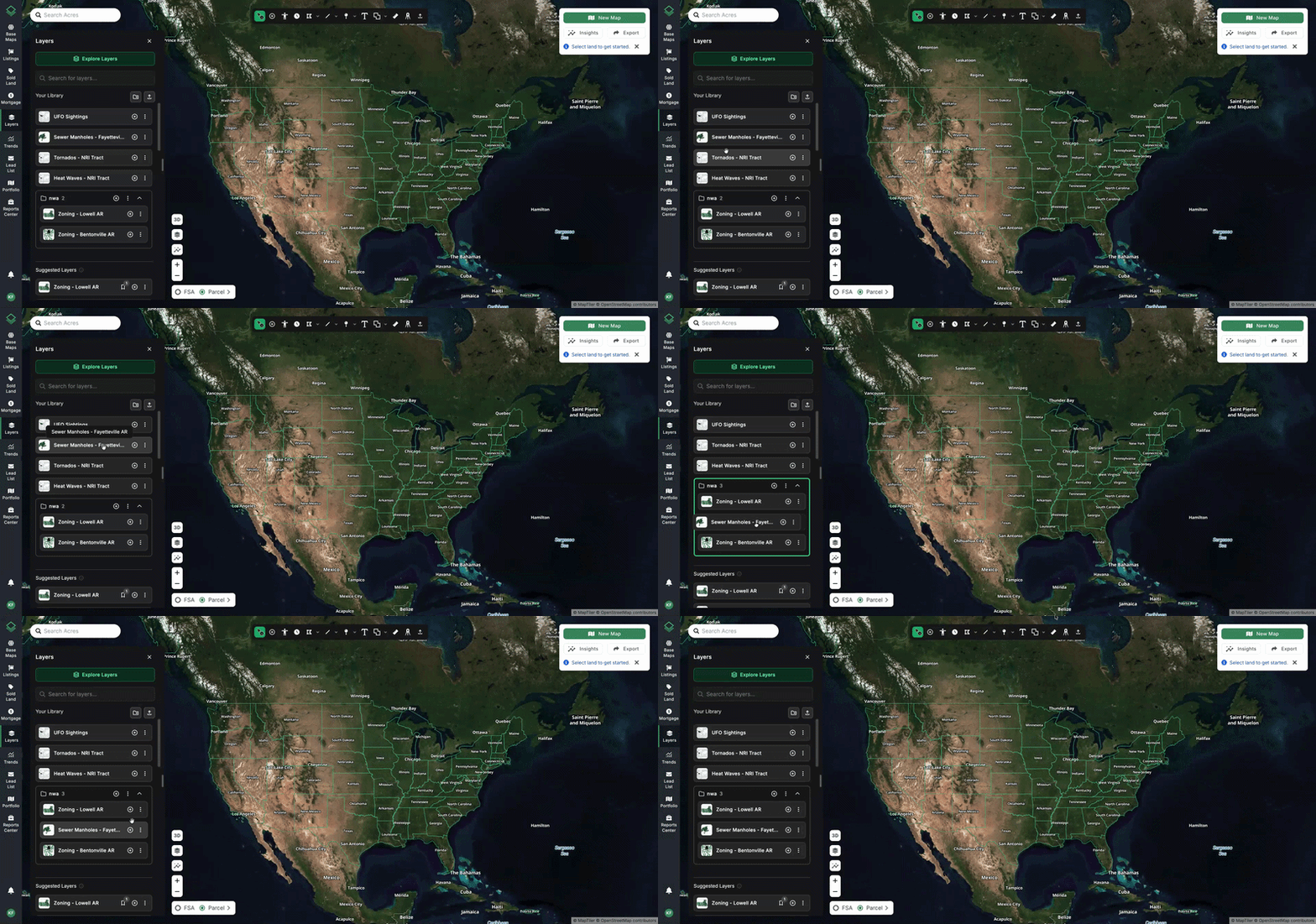
Tip: Organize folders by project, market, or client so the layers you need for each deal are always one click away.
Remove a Folder from Your Library
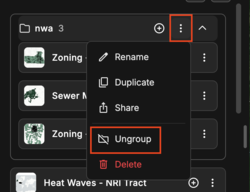
If you no longer need a folder, you can ungroup it. Ungrouping removes the folder, but keeps all of its layers saved in your Layer Library.
- Click the three-dot icon (⋮).
- Select Ungroup. The folder is deleted, and the layers inside it will move back into the root of your Layer Library.
Customize Your Layer
Under the Style tab you can:
-
Click Color By and select the data field you want the layer’s colors to reflect.
- Click Palette to change the layer’s overall color scheme, or click an individual bin or category to change its color.
- You can change how values are split into bins using one of these methods: Natural Breaks, Quantile, Equal Interval, Standard Deviation, or Manual.
-
Fine-tune how the layer appears on your map by adjusting its:
- Opacity
- Border size
- Border color
- Border style
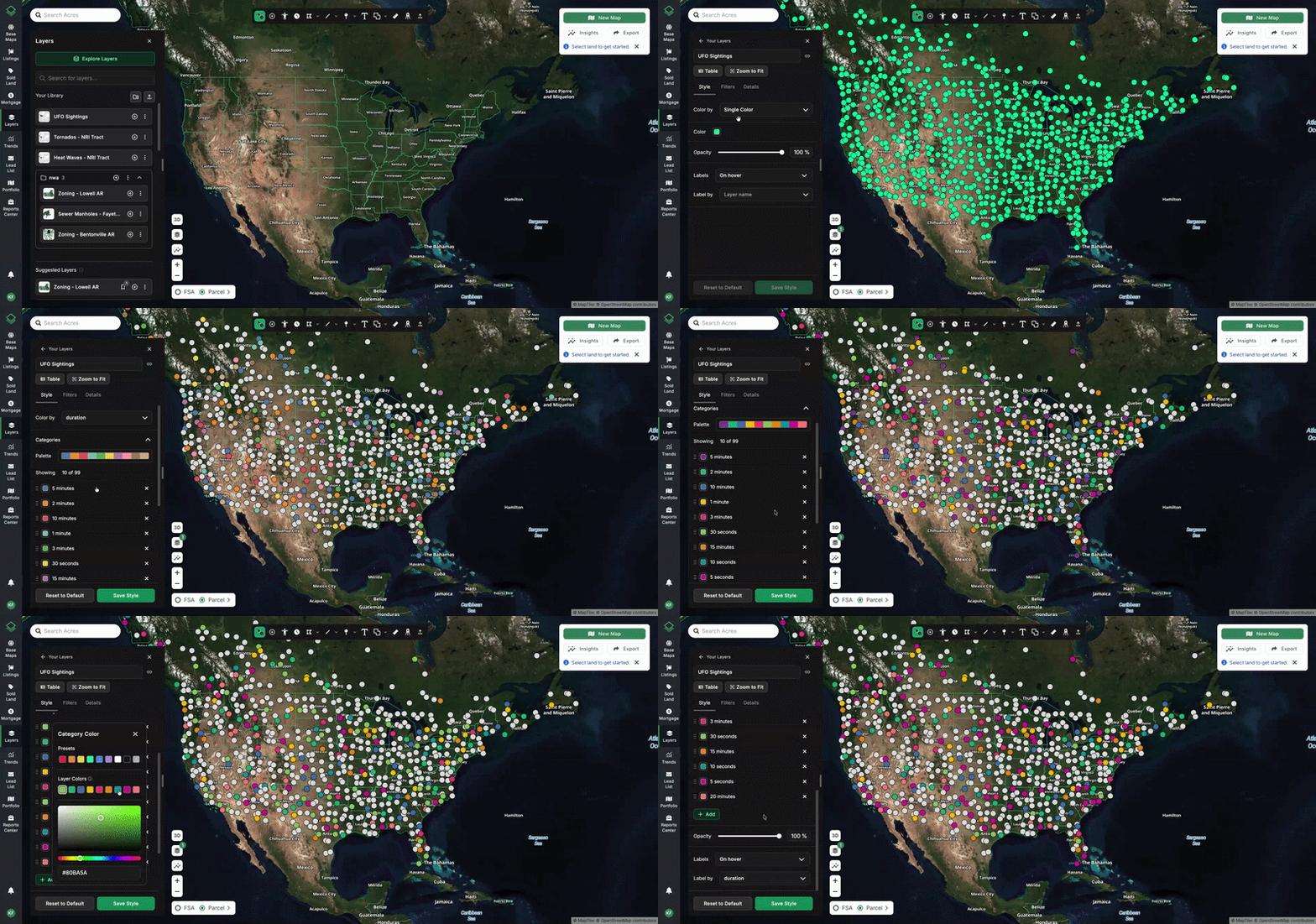
Tip: Rename your layer to reflect your customizations. For example: "Zoning: Residential Only".
View Labels on Your Map
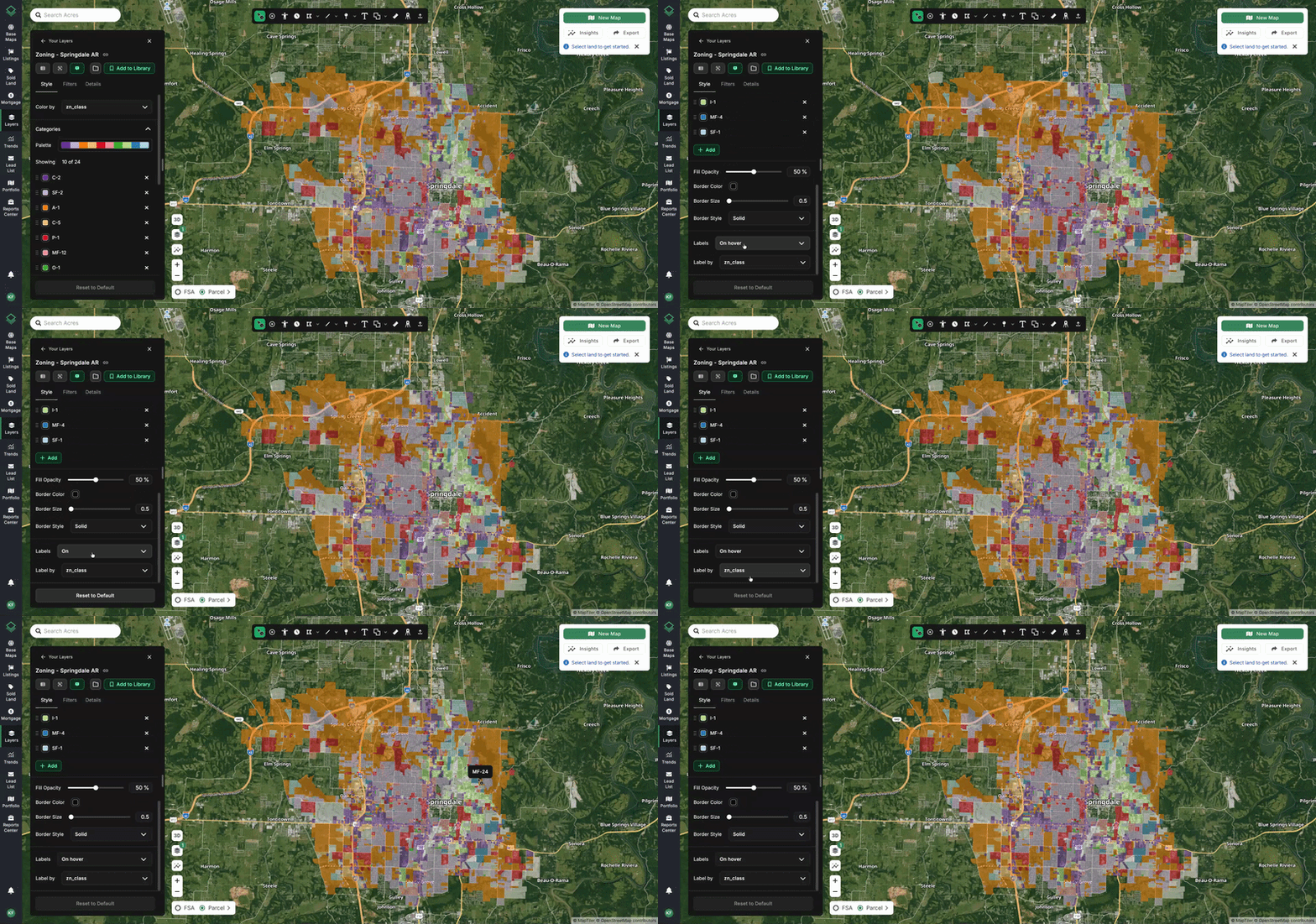
You can toggle on or off labels on the layers you have live on your map. The labels will be in hover mode by default. You can select which field is used for the labels.
Filter Data
To change which type of data appears on the map, utilize filters.
- Open the layer
- Click Filters (near the top between Style and Details)
- Click Add Filter
- Using the drop down and/or search bar, find and select the property you want to filter by
- If you select a Text Field, you can choose from is, is not, contains, and does not contain
- If you select a Number Field, you can choose from is, is not, is greater than, is less than, at least, at most, and between
- Stack as many filters as needed by clicking Add Filter
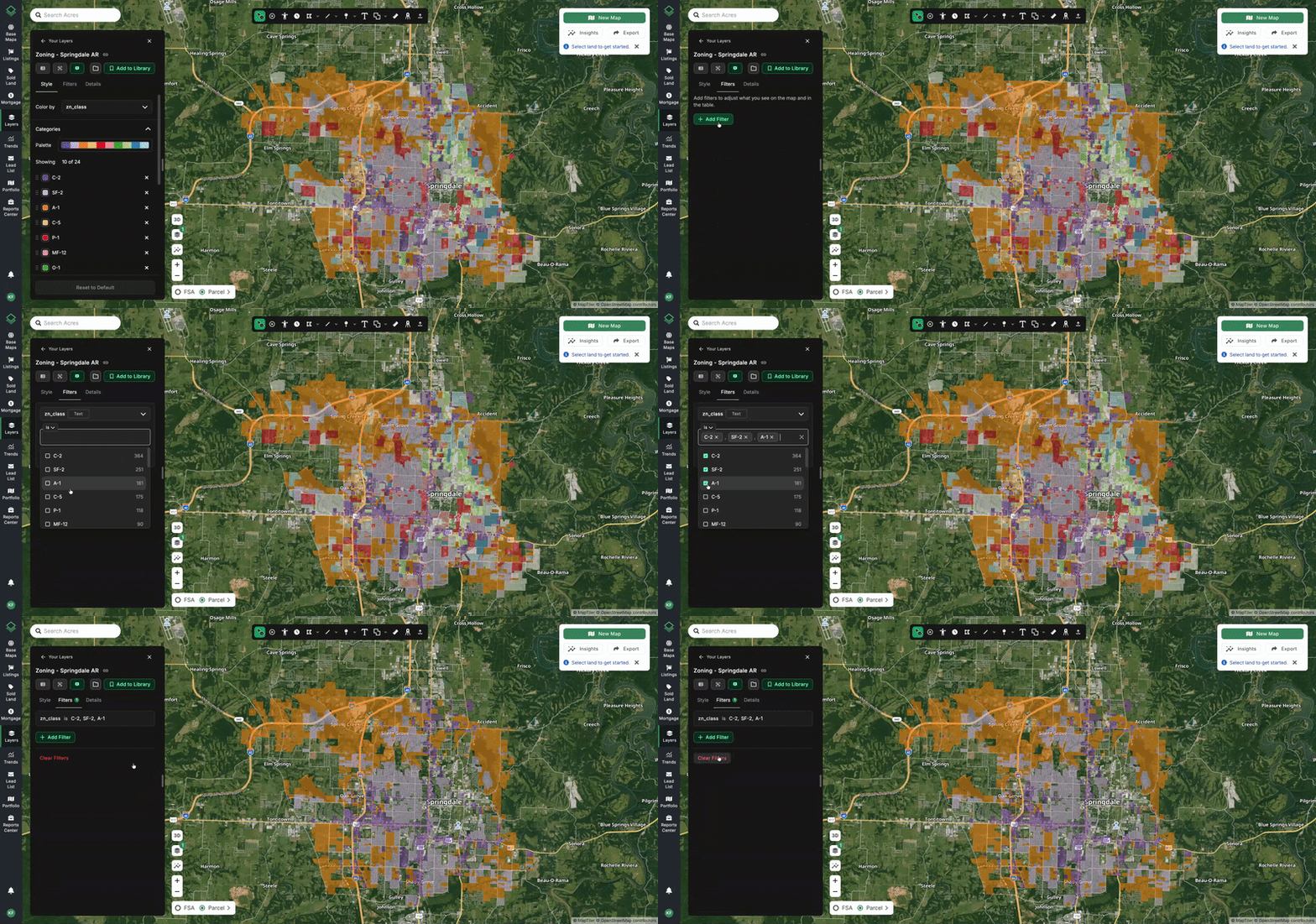
Tip: Any filters or alterations that you make to a layer will automatically save in that format in your Layer Library.
View the Data Table
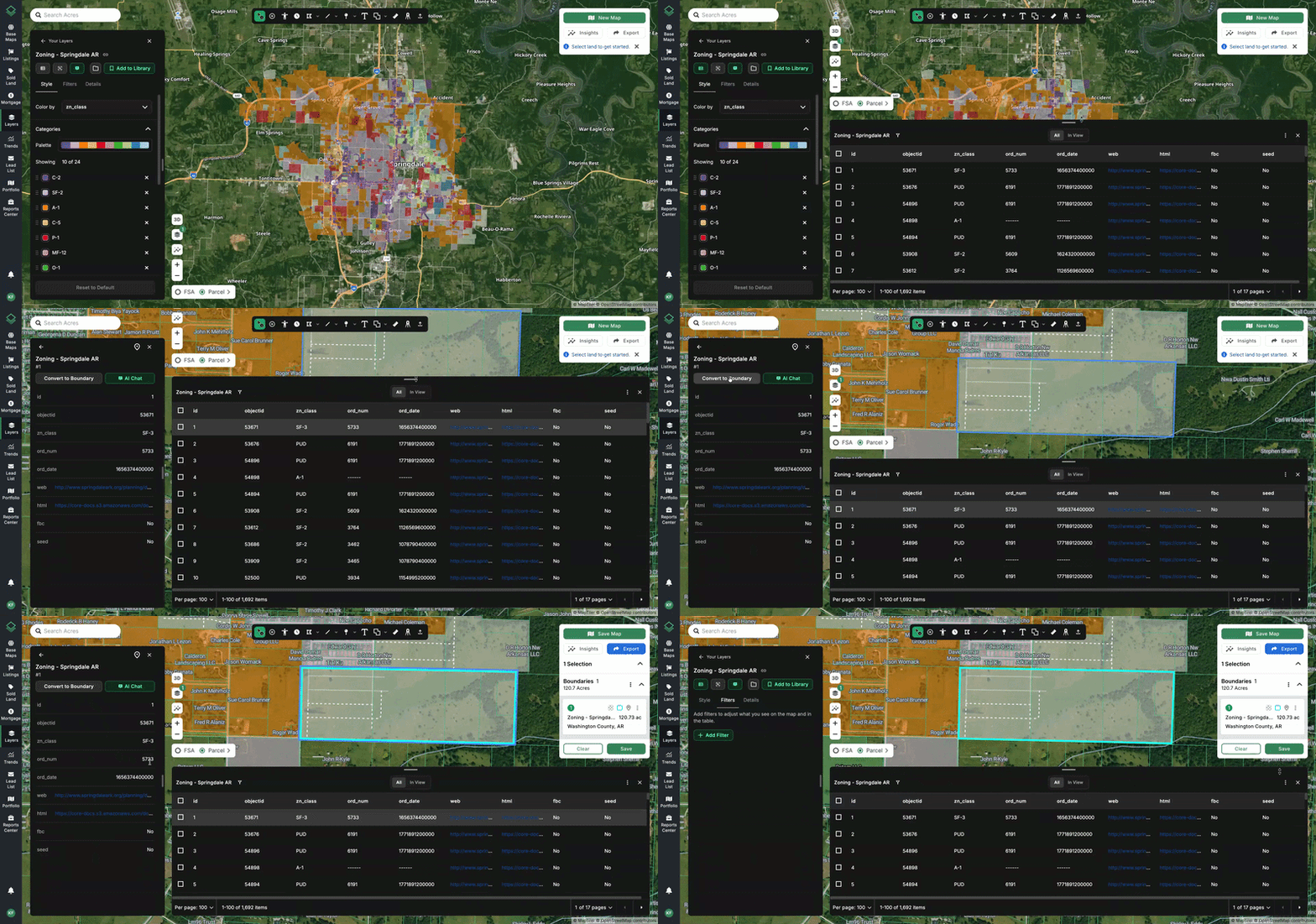
To view the full dataset, you’ll want to open the Table:
- From your layer library panel, click the three-dot menu ⋮ button, then click Open Table
- From the layer info panel, click the Table button (under the name of the layer)
This will open the data table. From here, you can:
- Adjust the height of the table by grabbing the top bar and moving it up and down.
- View details of an individual data point by clicking on any row.
- Sort the table by clicking on the name of the property (column header).
- Restrict the data to only show what is in your map view by selecting In View at the top.
- Convert shapes to boundaries by clicking the check box(es). Doing so will have a Convert to Boundary option appear at the top right. This is for polygon layers only. Click here to learn more about converting boundaries.
Share Layers
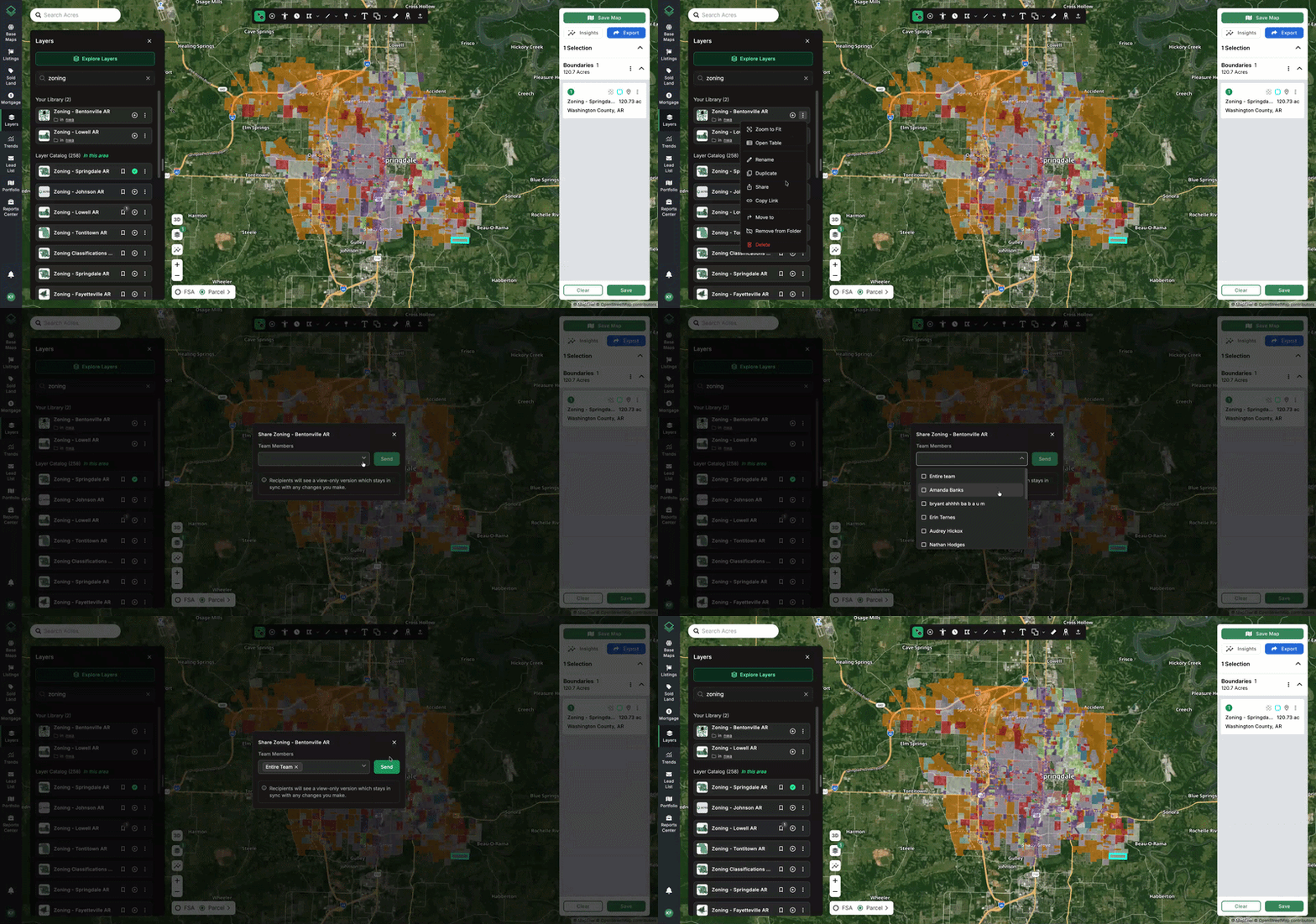
Share your version of a layer with teamates including filters, alterations, and styling changes.
- Click the three-dot icon (⋮) on the layer or folder card, then select Share.
- Use the dropdown to select individual team members, or choose Entire Team to share with everyone in your organization.
- Click Share.
View Layers Shared with You
Layers and folders your teammates share with you appear in the Shared with You tab of your Layer Library.
Note: Shared layers open in read-only mode, so their filters and styling cannot be changed.
Upload Your Own Layers
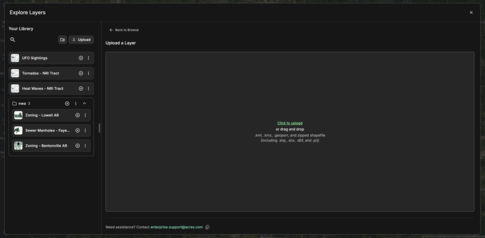
Bring your own data layers into Acres by uploading custom layers directly into your Layer Library. You can choose which folder they’re saved to and decide whether they are private to just you or your entire team.
Supported file types: KML, KMZ, GeoJSON, and zipped shapefiles (.zip)
Steps
- In your Layer Library, click Upload Layer.
- Select the file you’d like to upload.
- Choose who can see the layer:
- Entire Team: Everyone on your team can view and use the layer.
- Private: Only you can see the layer.
- Click Upload to finish. While your layer is being processed, it will show a Processing label in your library and in search results.