
Unlock more insights by viewing your Portfolio of Saved Maps directly as a layer while working in your Acres map!
Steps
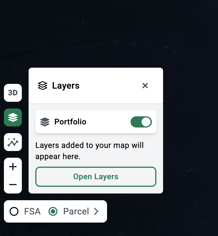
- Find the Layer Shortcut: Look for the standalone square button with the Layers icon in the bottom left corner of your map.
- Toggle Your Portfolio: On Click the Layers icon and from there you can toggle on your Portfolio. (To hide it from the map, simply toggle it back off.)
Note: To customize your view first (for instance, to show only your maps or only maps tagged by a certain status, or to set your maps to be color-coded by a certain field), then adjust the filter settings in your portfolio first.
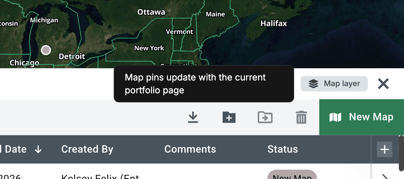
Open Portfolio, set your preferred filters, then click Map Layer on the top right-hand corner of your Portfolio.
3. Explore Your Maps: You will now see your saved maps displayed on your map. Zoomed out, saved maps are represented by a point (central to all selections within the map). Zoomed in, saved maps are represented by polygons based on the parcel shape. Hover over any dot to see the map name, and click to open the map preview window instantly.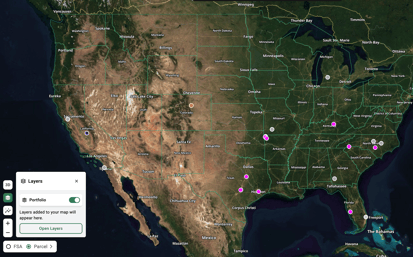
Tip: Stay organized at a glance. You can customize your dot colors in your Portfolio settings using your status columns, making it easier than ever to track your projects.