
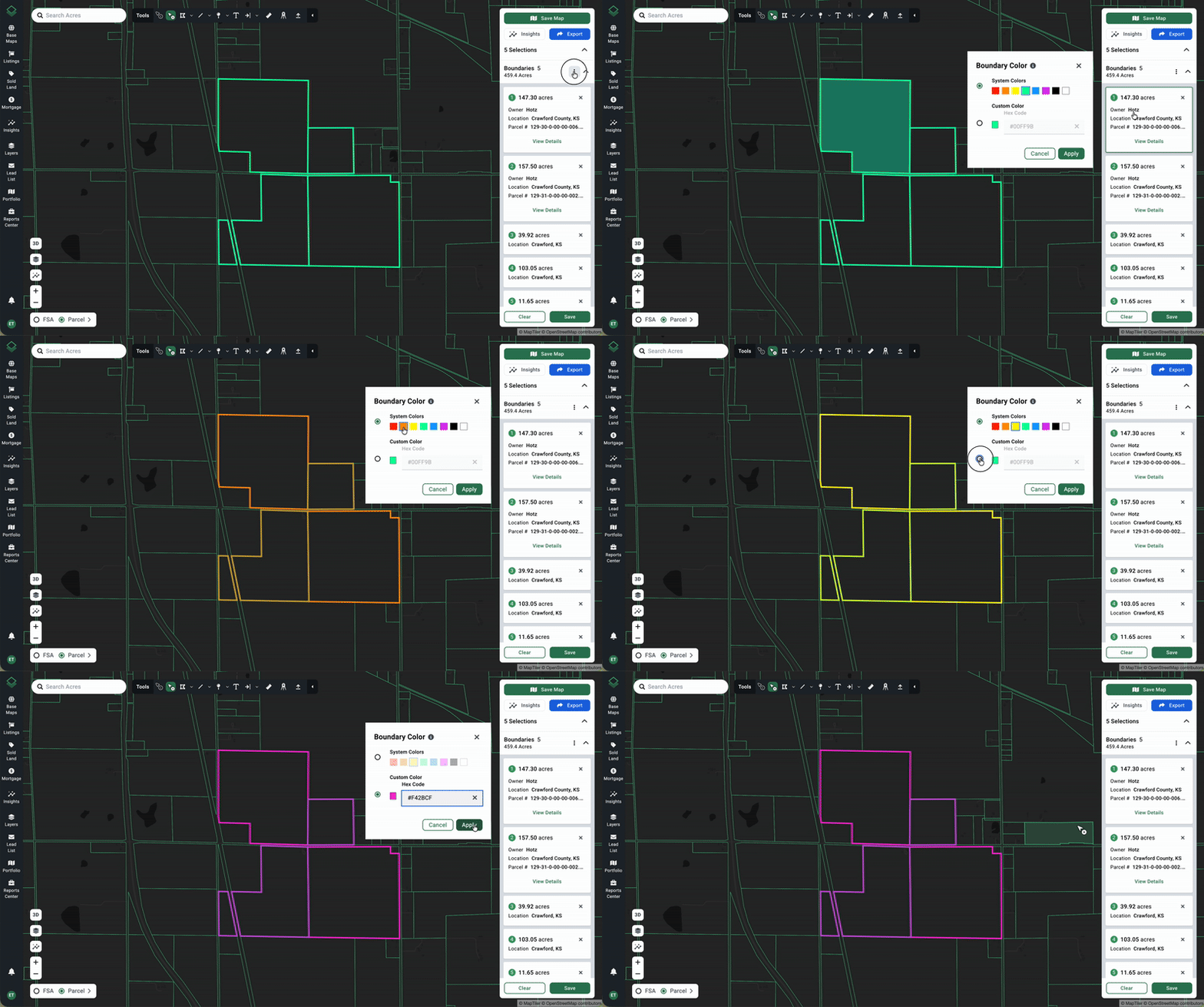
If you want to change the color of the ‘boundary’ lines, which appear when you select a parcel, Acres allows you to choose from preset options as well as select any custom color using a Hex Code selection. To change the boundary colors, follow these easy steps.
- Select a parcel on the map. Once selected, the parcel will appear in the right hand panel.
- Once a parcel is selected, click the three dots to expand the options menu (see image below).
- You will see several options appear in the drop down menu. Select “Change Boundary Color” from the menu.
- You will then be prompted to choose from either Acres preset color options, or to enter a custom color using a Hex Code. A hex code is a six-digit, six-character code, preceded by a hash symbol (#), used to represent colors in a digital format, often in web design.
- When you have made your selection, click Apply for the change to save.
Note: This will be a universal change to all boundary lines across your Acres account. To highlight certain parcels in a different color, clone the shape to a drawing and edit. Click here to learn more.