
Some of our layers require a subscription. Access to ALL 13,000+ layers requires an Enterprise subscription specifically. Click here to compare our plans and upgrade your plan.
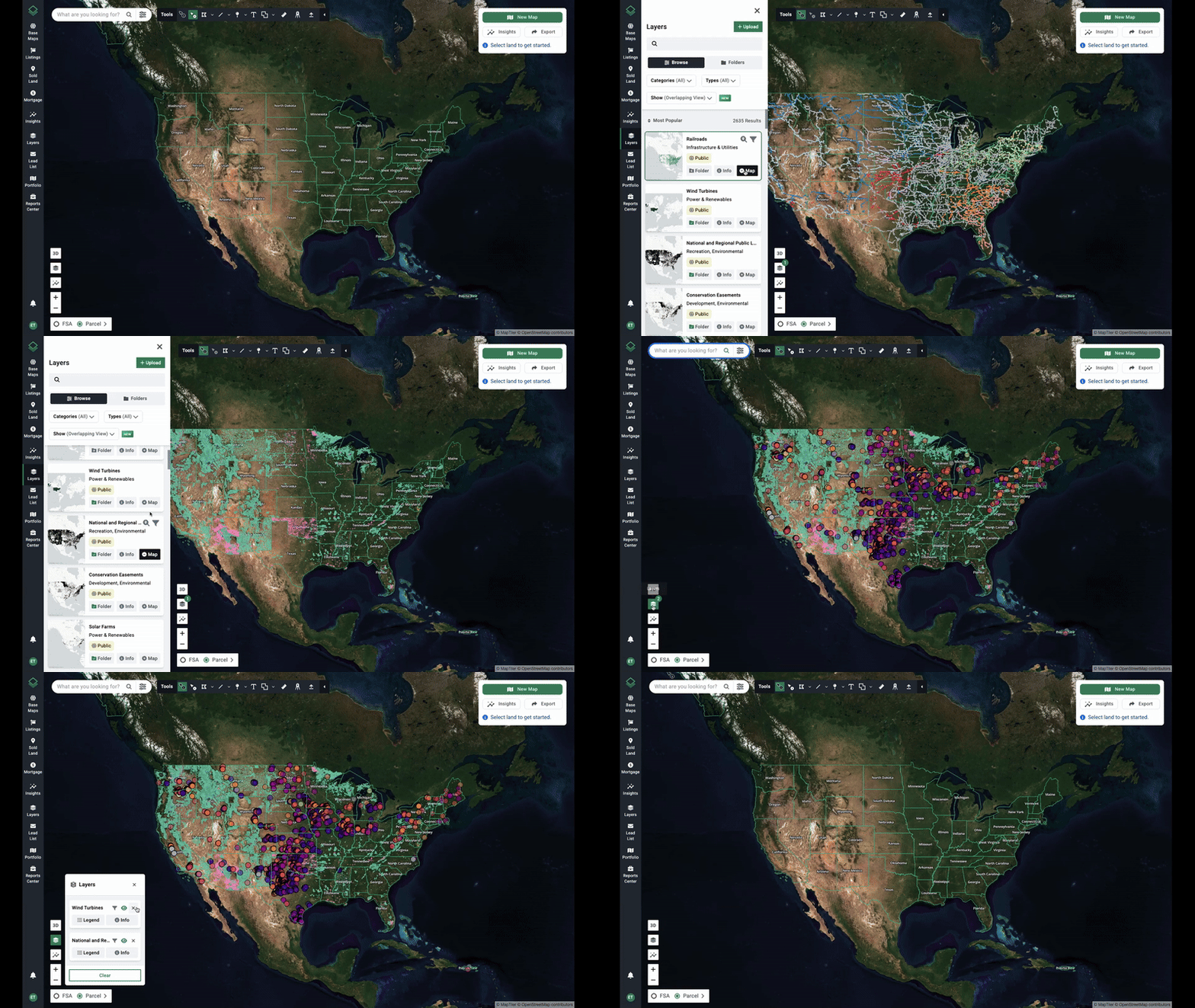
Add layers from the Layer panel
- First navigate to the left hand menu and click Layers.
- Find the layer you are interested in viewing.
- Click the button that says + Map.
- Click that same button again to remove it from the map.
Add layers from the Property Summary panel
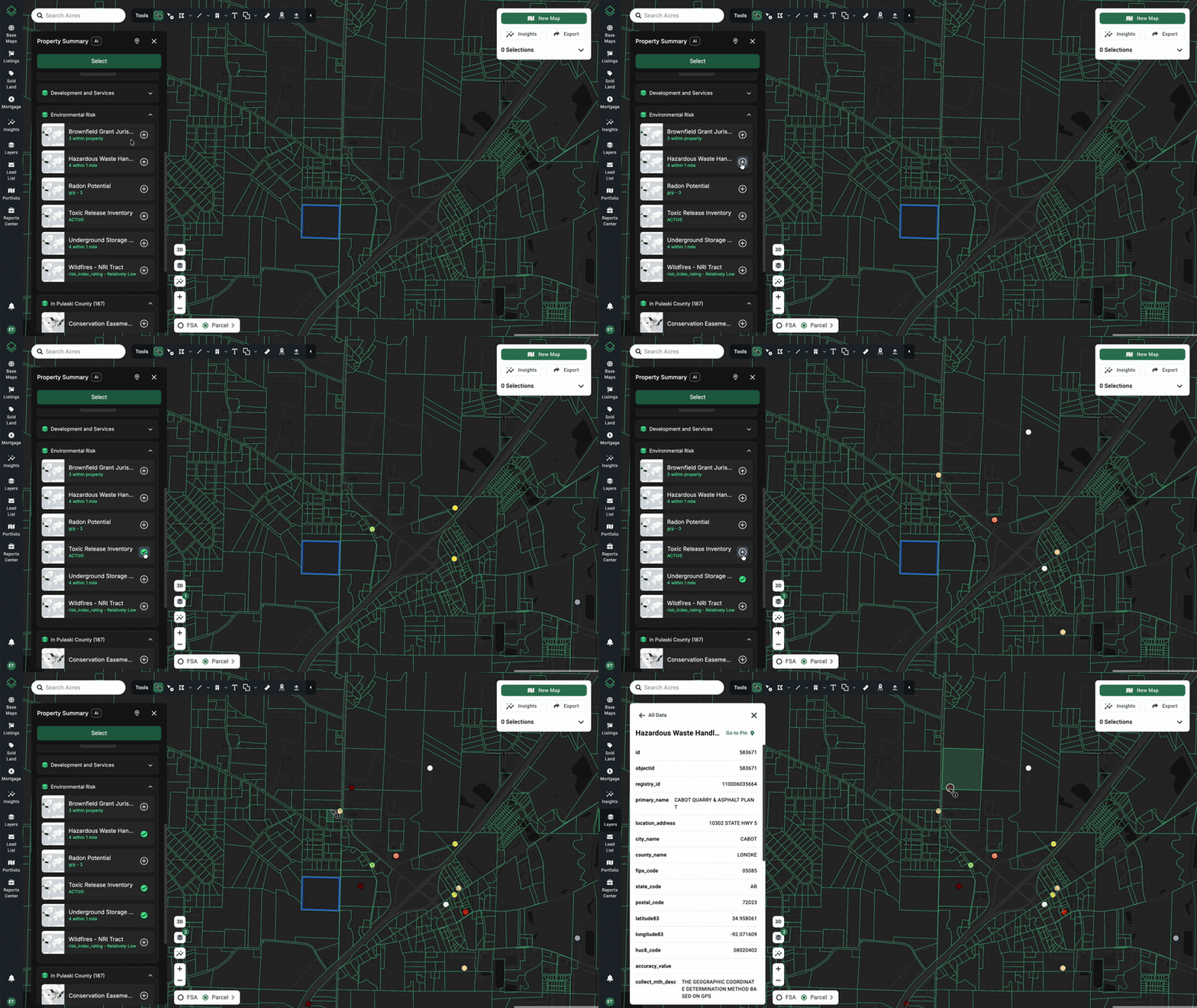
- Click on a parcel using the black Info Tool cursor to pull up the Property Summary
- Scroll to the bottom to find the Layers section
- Click the + icon to add it to the map
- Click the + icon again to remove it from the map
Note: There is also a shortcut that is pinned to the map with or without the Layers tab open. You can click that to hide/unhide it from the map (with the eyeball icon) or remove it from the map (with the small x icon to the right of the eyeball).