
Stay up to date with the most current view of any property using our Recent Imagery tool. While standard high-resolution basemaps provide a clear "portrait" of a property, Recent Imagery serves as a real-time signaling tool, allowing you to monitor development, timber harvests, or land clearing as it happens.
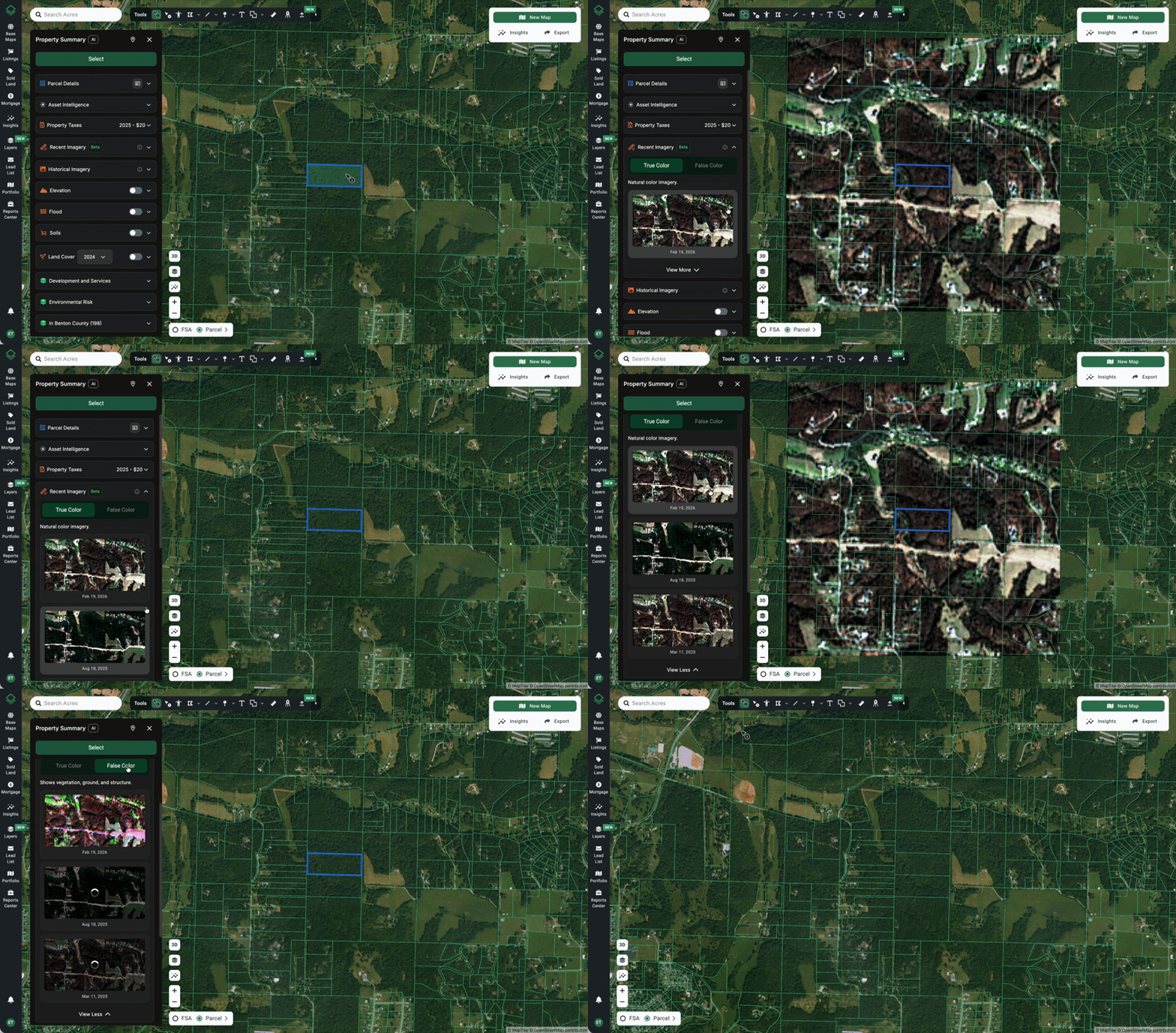
How to Use Weekly Imagery
You can access recent captures directly from the Property Summary:
- Use the Info Tool to click on a property or click View Details from the Selections Panel.
- On the left-hand Property Summary, scroll down to the Recent Imagery section.
- Hover over the imagery card to see the satellite overlay on your map.
- Click View More to see a chronological list of all recent captures.
- Switch between True Color (natural look) and False Color to highlight different land features.
Understanding Resolution vs. Recency
When using this tool, it is helpful to think of it as a "10,000-foot signal" rather than a high-definition photograph.
- The Trade-off: Because these images are captured and updated weekly, the resolution is lower than our standard Basemap Satellite Imagery.
- The Benefit: You receive near real-time intel. This allows you to verify if a building has been demolished, a road has been paved, or a forest has been cleared—often months before these changes appear on Google Maps or other traditional providers.
Key Use Cases
1. Remote Monitoring & Site Verification
Avoid unnecessary "windshield time." Instead of driving to a site to check project status, use Weekly Imagery to track development, clearing, or construction progress directly from your office.
2. Timber & Asset Management
For lenders and managers, this tool is vital for verifying collateral.
- Track Harvesting: See exactly when a stand was thinned or harvested (e.g., identifying the specific month timber was removed).
- Identify Species (False Color): Use the False Color toggle to differentiate between vegetation types. In this mode, darker greens typically represent hardwoods (non-commercial), while lighter greens highlight commercial softwood stock.