
There are two main ways to move your saved map into a saved folder in the portfolio.
Option 1 — Move Folder Icon
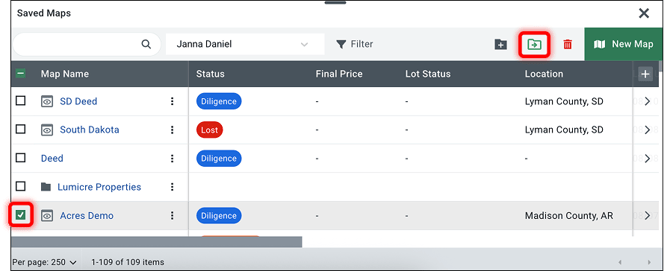
- Click the checkbox to the left of the map you’d like to move.
- Once selected, a green folder with an arrow will appear on the top right of the selections panel.
- Click the green folder icon.
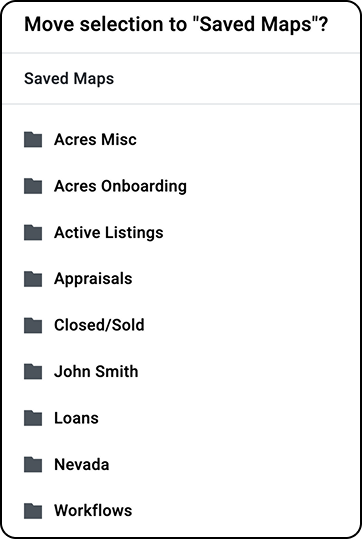
- A new window will open where you can select which folder you’d like to move the map into.
- Select the folder then click Move Here.
Option 2 — Menu > Move to Folder
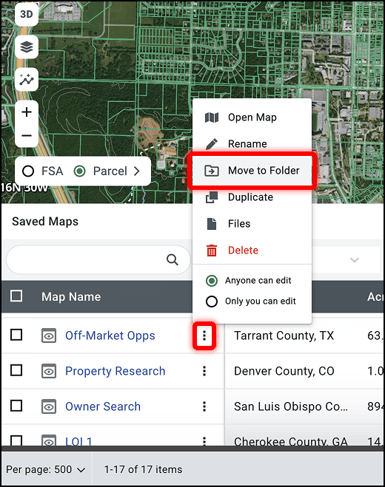
- Click the overflow menu (three vertical dots) on the right side of the map name.
- Select the Move to Folder option from the menu.
- A new window will open where you can select which folder you’d like to move the map into.
- Select the folder then click Move Here.