
You can interact with Acres Asset Intelligence in a few different ways:
Search: Through the Asset Intel Advanced Search Feature (which populates on the left-hand side of the screen), you can search by name, address, or name and address.
Graph: Through the Asset Graph (which populates on the bottom of the screen), you can preview all parcels, purchases, and mortgages that are associated with a particular owner name and/or address.
Asset Intel Advanced Search
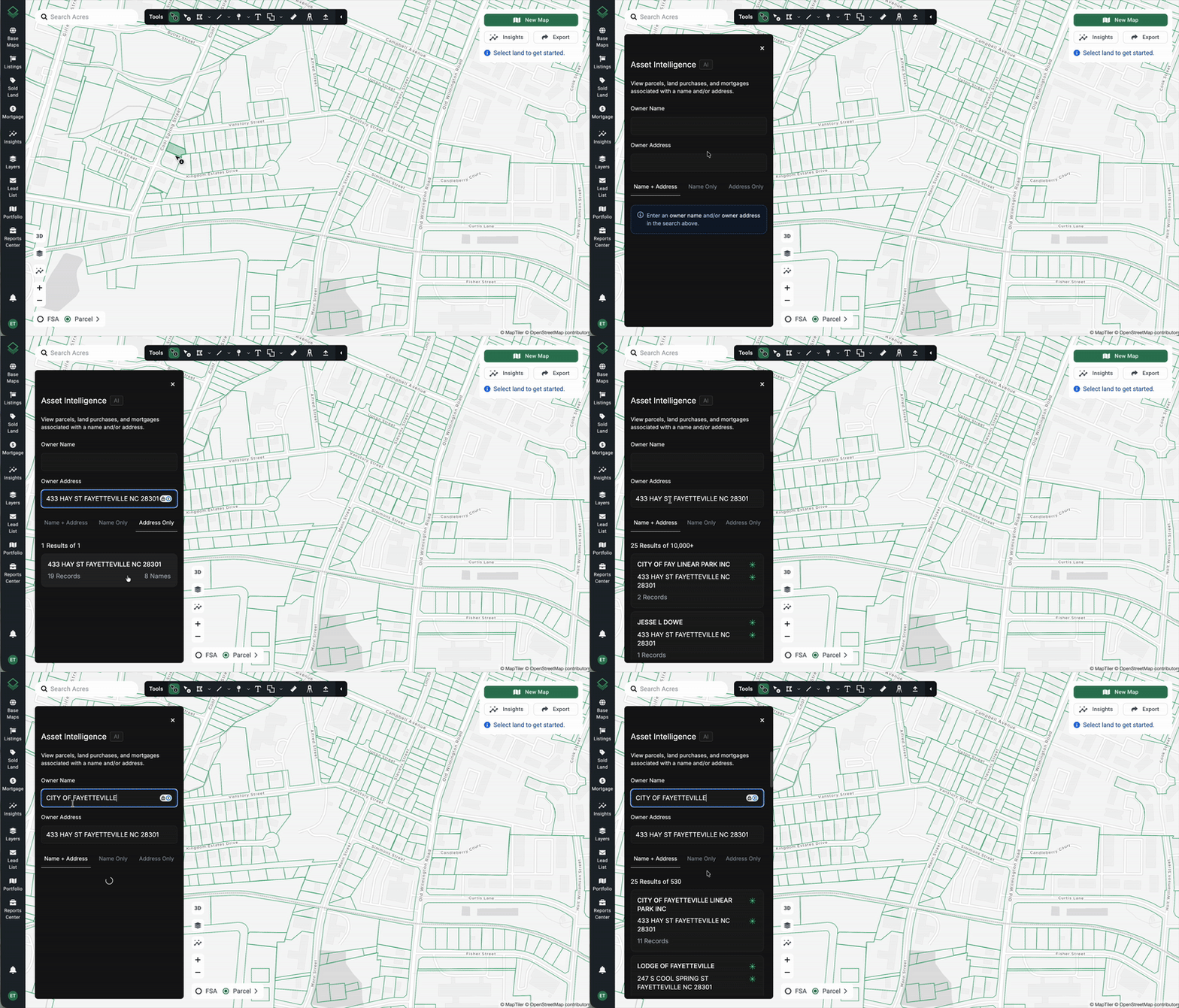
To search using our Asset Intel Advanced Search, simply click on the search bar on the top left of the map and then click Asset Intel. This will open a new panel on the left-hand side of the screen.
From here you can search by Name + Address, Name Only, or Address Only.
Name + Address is the default option. It’s more specific to help address common duplicate names as well as unique name and address combinations that we recognize.
Name Only and Address Only are both broader search options that look for that single piece of information.
For instance, a Name Only search of Scott Brown may bring up hundreds of results associated with hundreds of different addresses. Or you may want to search by a specific address to see the variety of names tied to a single tax address.
Regardless, results will populate below your search inputs in list form. To interact with this information further, click on the card to pull up the graph (see more below).
TIP: You can also click the * icon next to the name or address to bring up a search specific to that name.
Assets Graph
Our assets feature will populate toward the bottom of the map. It can be expanded and/or shrunken by grabbing and moving the top center of the window, hidden by clicking the down arrow on the top right of the window, or closed by clicking the x on the top right of the window.
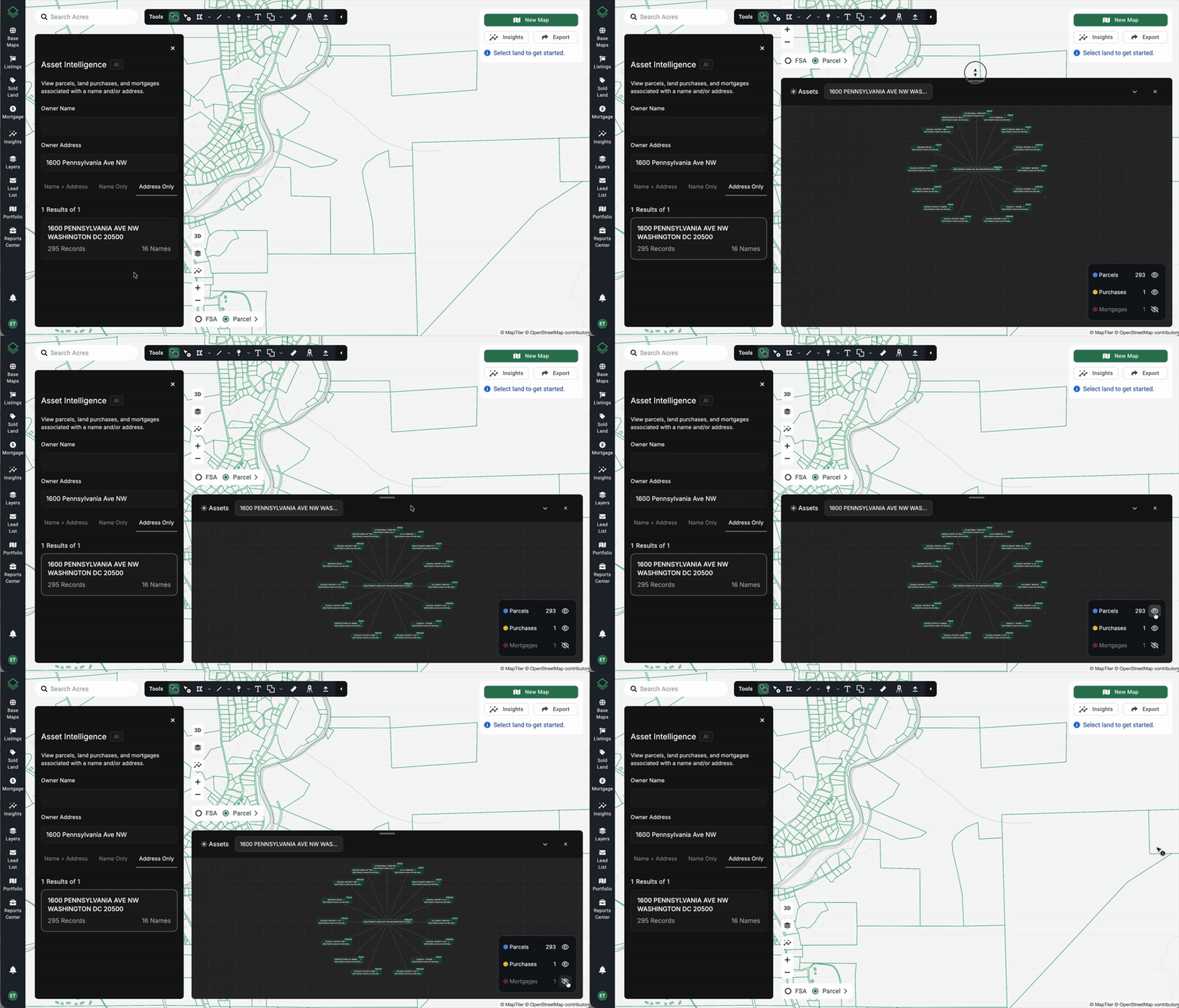
Our assets graph pulls together Parcels, Purchases, and Mortgages that are associated with a particular landowner name and/or address.
In this graph view, each shape (node) represents a related entity or record. Nodes are grouped by type and expand outward with more specificity.
The central node will be what the search was started with, whether an individual name or address or a name + address combination.
From there it expands to category nodes (parcels, purchases, or mortgages).
Finally, you’ll see individual record nodes (specific parcels or all of the historical sales tied to that parcel, for instance).
TIP: You can hide and show each of these categories on the graph as a whole by clicking the eyeball on the bottom right of the window.
The graph has many interaction opportunities.
- To move the screen around, click and hold on the black background, then move your cursor around.
- To move a node, click and hold on a node, then move it around. Release your click to “drop” it in place.
- To expand or hide information, click on a node.
- For instance, click on an entity node to open and close category nodes (for instance open the associated parcels and mortgages). Or click on a category node to open and close the individual record nodes (for instance show all individual parcels).
NOTE: You will see the results represented on the map — but only if that result group is expanded (either in list form or wheel form).
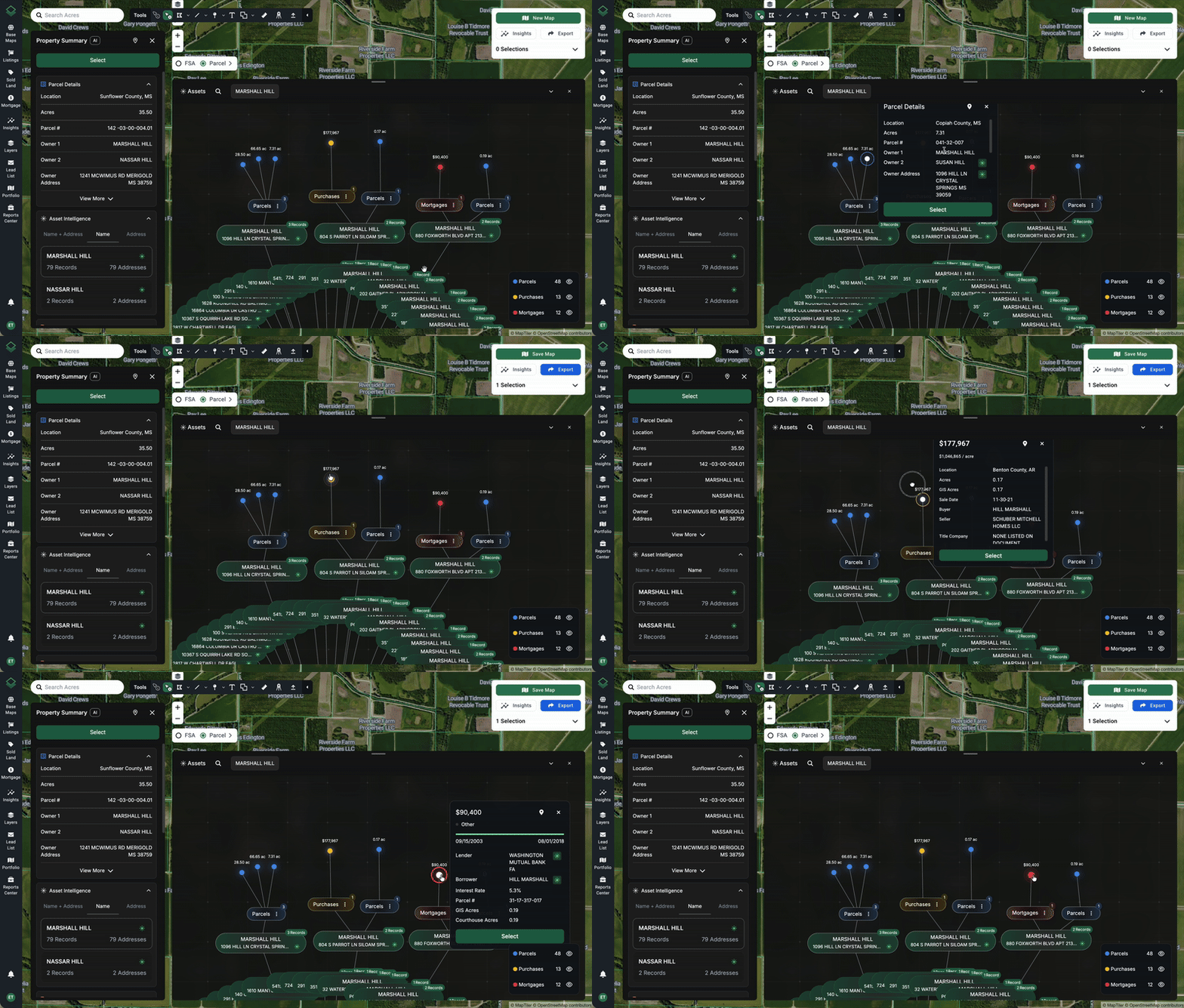
Click an individual record node to open more details. These are simple dots — blue dots with acreage near it for parcels, red dots with dollar amount for mortgages, yellow dots with sale amount for purchases.
Note: Sometimes the graphs are fully opened (like for smaller sets of results for under 20 records), and sometimes they are hidden (like for larger results).
From the detail pop-out window of an individual record node, you can do the following….
- View parcel, sales, or mortgage details in a preview mode
- Click the location pin to zoom to that parcel on the map
- Click on Select to add it to your selections panel
- Reverse search the owner name, owner address, lender, or borrower by clicking the * Assets icon.
NOTE: With Assets open, you can also click on the dot on the map to open the details pop up on the Assets window.
TIP: To see your search history, you can click on the current search on the top of the window to open a drop down and click around your past searches.